
Dependencies
A dependency says that an entry can’t start until another one has finished: the draft before the review, the review before the release. The entry that waits is blocked by the other.
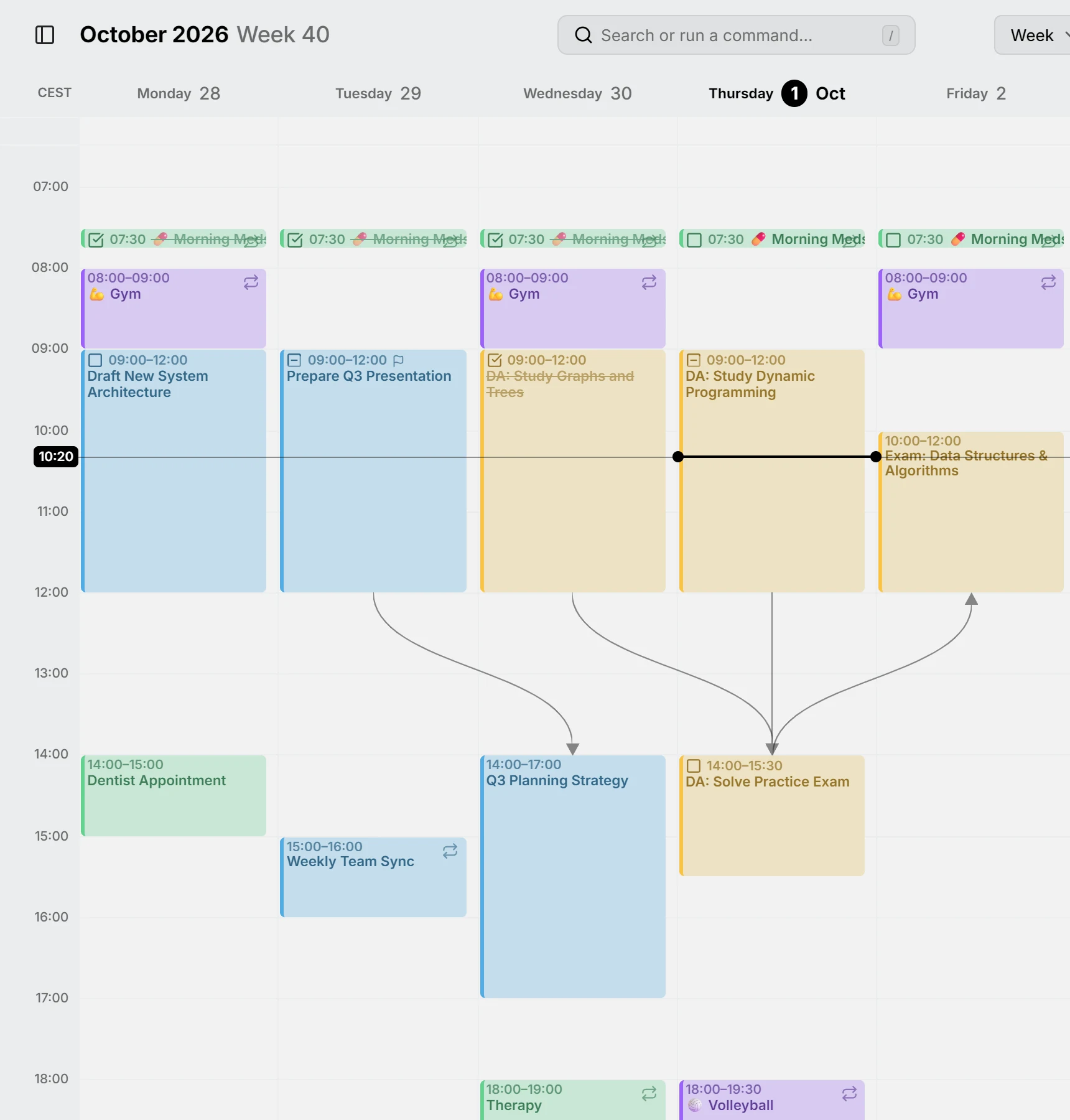
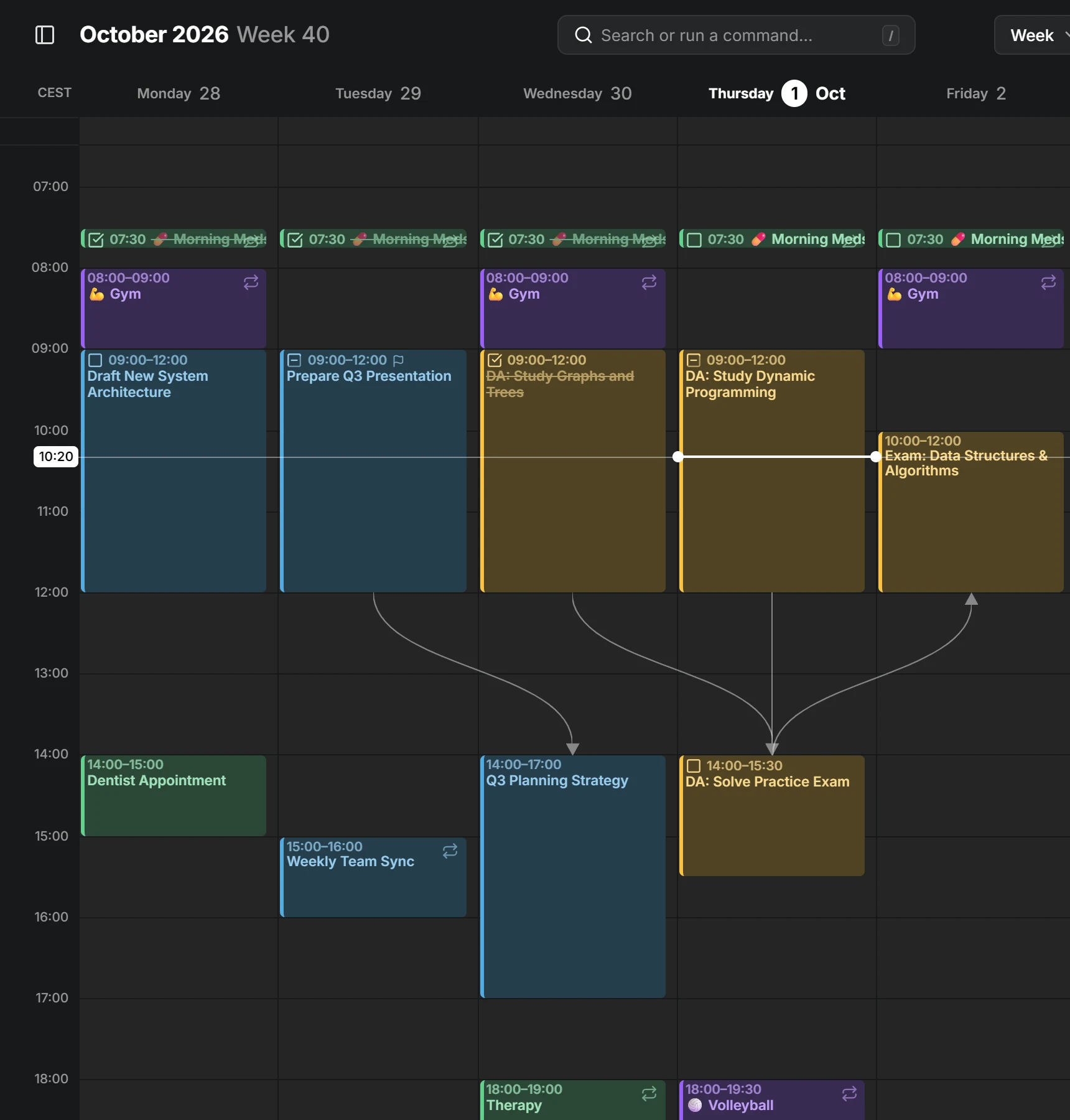
Add a dependency
Section titled “Add a dependency”Open the entry that waits, press + on Blocked by and type part of the title of the entry that has to finish first. The search covers all your calendars, so an entry can wait for one in another calendar or account. The other entry then lists this one under Blocks, which only lists links: you always add one from the entry that waits.
In the editor, click a linked entry’s title to open it, or press the ✕ beside it to remove the link, from either side. Mitra refuses a link that would go in a circle, such as two entries that each wait for the other.
With a mouse, you can also draw a dependency in the week or month view. Point at the entry that comes first, grab the short line at its end, and drop it on the entry that should wait for it. While you drag, the line turns red over an entry that already starts too early.
Lines on the calendar
Section titled “Lines on the calendar”The week view, the month view and the timeline draw a line from the end of each entry to the start of the entry that waits for it. Point at an entry to bring its lines forward. Each view’s lines can be turned off in Settings → Calendar, with Connector lines in the week view, Connector lines in the month view and Connector lines in the timeline.
Broken dependencies
Section titled “Broken dependencies”When an entry starts before the one it waits for has finished, the dependency is broken. Its line on the calendar turns red, and in the editor’s Blocked by and Blocks rows, the entry on the other side is named in red. Move either entry back into order, and the warning goes away.
Move a chain
Section titled “Move a chain”When you drag an entry, or one of its edges, and other entries depend on it, Mitra asks Move dependent entries too?. The choices that move other entries say how many:
- Only this entry moves this one and leaves the rest where they are.
- Keep the chain intact moves the others only as far as needed to keep them in order. Entries after this one move later, and if you moved this one earlier, the entries before it move earlier. An entry with enough room to spare stays where it is.
- Move them all by the same amount moves the whole chain, before and after this entry, by the same amount of time, so the gaps between them stay the same.
Mitra only asks when the choices would give different results. Changing times in the editor never moves other entries.
When an entry moves as part of a chain, its subtasks move with it. Repeating entries and unscheduled tasks in a chain are never moved.
TIP
Hold Ctrl (⌘ on a Mac) while you drop to skip the question and move only that entry. See keyboard shortcuts.
Which calendars support this
Section titled “Which calendars support this”A link is saved with the entry that waits, in that entry’s own calendar. Calendar servers, Apple Calendar and Mitra calendars hold any link, and on a calendar server it’s written in the standard calendar format, so other apps using the same calendar can read it.
- In Notion, a link to a task in the same database goes into the matching relation property, such as “Blocked by”. Mitra keeps links to anything else itself.
- Google Calendar drops links, so an entry in a Google calendar can’t be given something to wait for. Entries in other calendars can still link to it.
- Calendar subscriptions are read-only, and Tempo has no links.