
Integrations
There are two ways to keep a calendar in Mitra. You can store it in Mitra itself, on your server, with no account behind it. Or you can connect an account you already have, and Mitra keeps its calendars in sync both ways. Most people end up with a mix, and entries move freely between the two.
To add either, choose Add Integration at the foot of the sidebar.
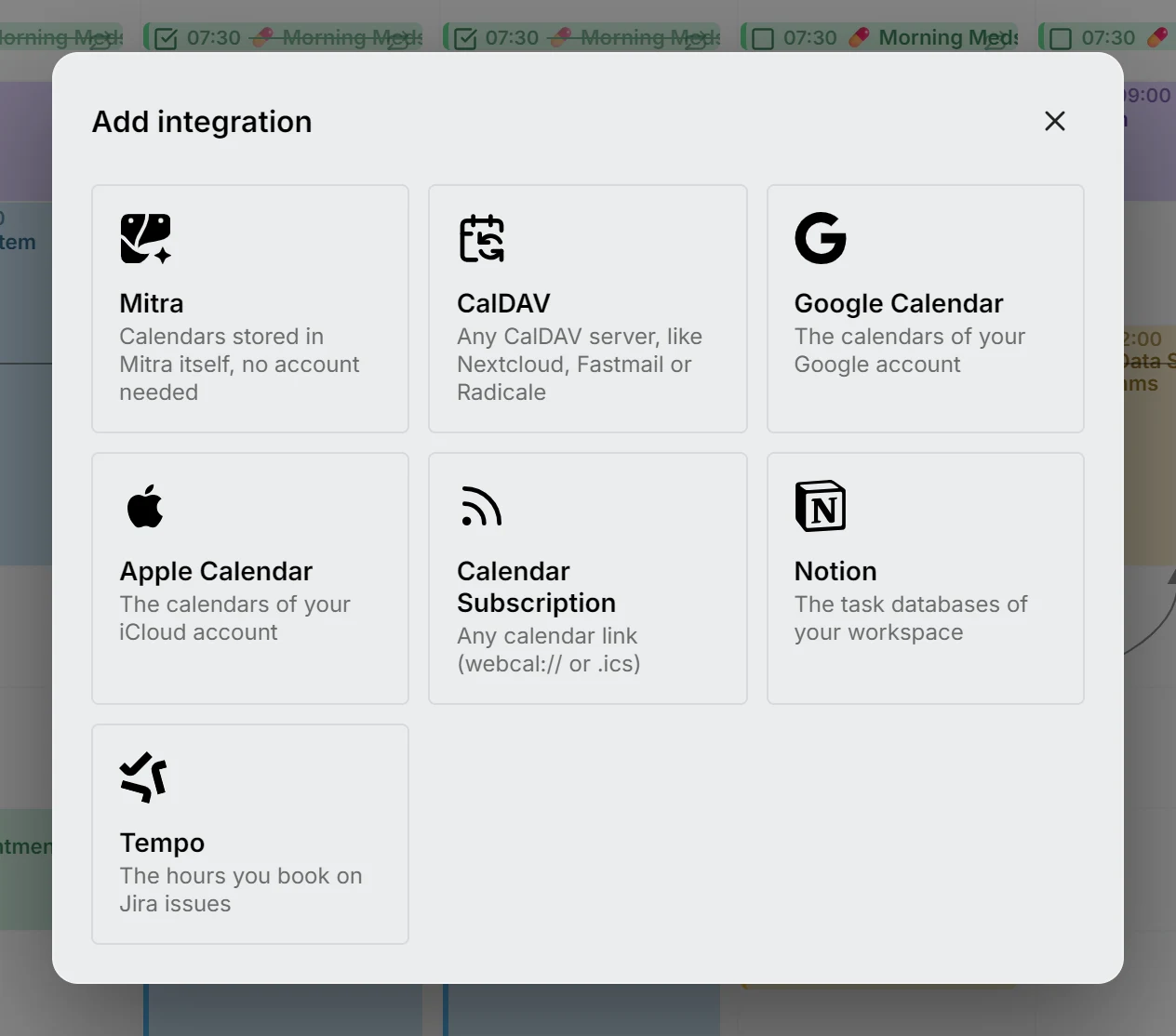
What each one holds
Section titled “What each one holds”| Integration | What it holds | Setup on the server |
|---|---|---|
| Mitra | Events and tasks, stored in Mitra | None |
| CalDAV | Events and tasks from any CalDAV server | None |
| Google Calendar | The calendars of a Google account | A one-time OAuth setup |
| Apple Calendar | The calendars of an iCloud account | None |
| Calendar subscriptions | A published webcal:// or .ics feed, read-only | None |
| Notion | Tasks from Notion database views | None |
| Tempo | The hours you book on Jira issues | None |
Each provider stores different things. Notion tasks can’t repeat, for example, and a Tempo worklog has no location. Mitra hides the fields a calendar can’t store, so nothing you type disappears on the next sync.
How syncing works
Section titled “How syncing works”When you connect an account, Mitra finds its calendars and lists them, all ticked. Untick the ones you don’t want before you save, and Mitra imports the rest. Calendars that show up in the account later arrive unticked, so nothing new lands on your calendar without you choosing it. Mitra never downloads a calendar that’s turned off.
After that, the server syncs in the background on its own. It checks more often while someone has Mitra open, and backs off when nobody does:
| While Mitra is open | While nobody has it open | |
|---|---|---|
| CalDAV and Apple Calendar | every 10 seconds | every 5 minutes |
| Google Calendar, Notion and Tempo | about once a minute | every 5 minutes |
| Calendar subscriptions | every 15 minutes | every 15 minutes |
| Mitra calendars | nothing to sync | nothing to sync |
Google, Notion and Tempo limit how often apps may call them, which is why they’re slower. When you open Mitra, every account that’s due syncs straight away, so there’s no refresh button to press.
Changes go both ways. When you create, edit, move or delete an entry, Mitra writes it back to the calendar it belongs to. One account failing doesn’t hold up the others: Mitra tries it again a minute later.
Some calendars can’t be changed from Mitra, such as subscriptions and calendars shared with you to view only. You can still rename, recolor and hide them; see Read-only calendars.
NOTE
Syncing only fetches what changed. If a calendar ever looks wrong, Re-import entries in its ⋯ menu throws away Mitra’s copy and imports it again from the provider; see Re-import a calendar. Nothing at the provider changes either way.
Change an account
Section titled “Change an account”Each account can be connected once. To change its password, or which of its calendars Mitra shows, choose Edit in its ⋯ menu instead of adding it again. Google Calendar is the exception: connecting the same Google account again renews Mitra’s access to it.