
Entries
Everything on your calendar is an entry. Most entries are events, which take place at a time, or tasks, which you get done and tick off. A third kind, availability, shades the time you set aside for something, behind your events and tasks.
This page covers the entry editor: its header, the rows below it, and the description.
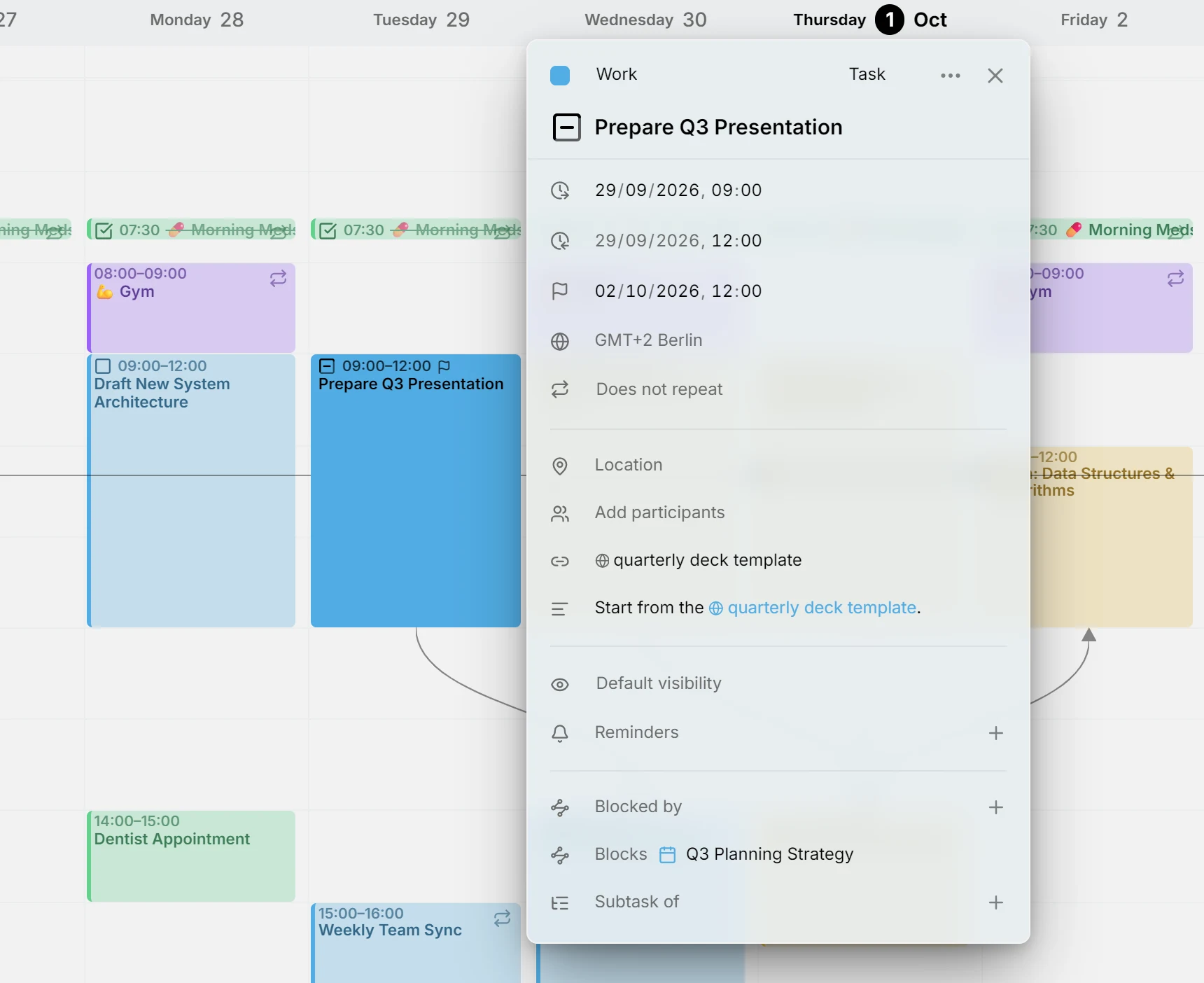
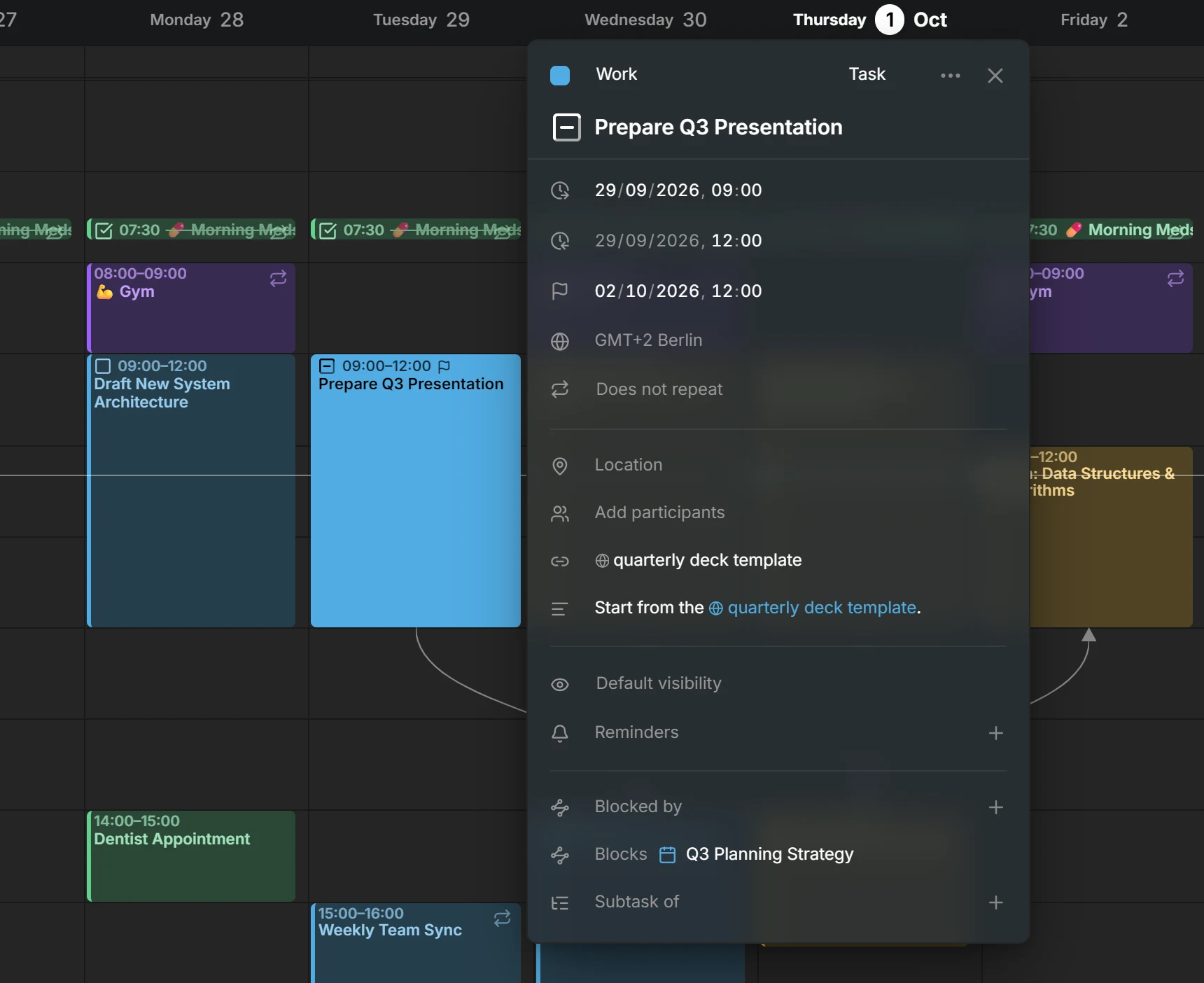
Open the editor
Section titled “Open the editor”Click an entry to open its editor beside it. To create one, press C or Create at the top of the page. The new entry starts at the next full hour, lasts an hour, and goes to your default calendar. In the week view, you can also drag across empty time.
Every change is saved as you make it. Close the editor with its ✕, or by clicking outside it. On a narrow screen, such as a phone, the editor slides up from the bottom as a sheet.
The header
Section titled “The header”The top line of the editor holds the entry’s color, its calendar, its type and the ⋯ menu.
Give an entry its own color
Section titled “Give an entry its own color”An entry wears its calendar’s color. To give one entry a color of its own, click the dot at the start of the header and pick one. Reset to calendar color, in the same picker, gives it back the calendar’s color.
Move an entry to another calendar
Section titled “Move an entry to another calendar”Next to the dot is the name of the entry’s calendar. Click it and pick another calendar to move the entry there. The list leaves out calendars that couldn’t keep something the entry has, such as a repeat or a Cancelled status. See Move a single entry.
Change an entry’s type
Section titled “Change an entry’s type”Further along, the header shows the entry’s type: Event, Task or Availability. Click it and pick another. Calendar servers keep events and tasks apart, so Mitra saves the entry anew as the other type and deletes the old one. The editor stays open on the result.
Whatever the new type can’t hold is dropped. A task that becomes an event loses its status, progress, due date and estimate. An event that becomes a task loses busy or free. Availability has no participants or reminders.
The type can’t change on a repeating entry, or in a calendar that holds only one type, such as a Notion calendar. Availability is only offered where the calendar can hold it.
The ⋯ menu
Section titled “The ⋯ menu”Duplicate makes a copy in the same calendar and opens it. Holding Alt while you drag an entry makes a copy where you drop it.
Delete removes the entry. While the editor is open, Delete or Backspace does too, as long as you’re not typing in a field. If the entry repeats or has subtasks, Mitra asks which ones you mean.
An entry from Notion or Tempo also offers Open in Notion or Open in Jira, which opens it where it came from.
Title and time
Section titled “Title and time”The title is the large line under the header. The rows below it say when the entry takes place: its start, its end, its time zone, and whether it repeats. To switch between days and times, press All day at the end of a date, which shows while you’re on that row.
A task also has a due date and, while it’s unscheduled, an estimate. See Planning. For time zones, see Time zones, and for repeats, Repeats.
Task status
Section titled “Task status”A task has a checkbox before its title, and one of four statuses: To Do, Doing, Done or Cancelled. Click the checkbox to mark the task done, and click it again to open it back up. To pick any status, right-click the checkbox or Alt-click it. This works on the calendar too.
Done and cancelled tasks are struck through. A calendar without a cancelled status, like Notion, leaves Cancelled out of the menu. A task with subtasks or a checklist shows its progress in the checkbox; see Subtasks.
Busy or free and visibility
Section titled “Busy or free and visibility”The row with the eye says what other people learn from the entry when they look at your calendar.
Events choose between Busy and Free. Busy, the default, marks the time as taken, so someone who checks when you’re free to meet sees it as blocked. Free shows the entry without blocking the time, which suits a reminder to yourself or a holiday you’re not taking off. Tasks have no busy or free. Availability does, and starts as free; see Availability.
Every entry has a visibility. Default visibility leaves it to the calendar. Public lets anyone who can see your calendar read the entry. Private asks other apps to show people you share the calendar with only that the time is taken, not what it is. Confidential is the strictest, for entries that should stay between you and the people invited. Mitra saves your choice with the entry, and the server and the apps reading it decide what to hide.
Location, people and more
Section titled “Location, people and more”- Location holds a place, with a map, or a meeting link.
- Participants lists the people involved and their replies.
- Reminders notify you before the entry starts, or before a task’s due date.
- Links gathers the links in the description above it.
- Subtask of and Subtasks build a tree of tasks; see Subtasks.
- Blocked by and Blocks say what has to finish first; see Dependencies.
The description
Section titled “The description”Click the description to edit it, and click elsewhere to see it formatted again. It’s written in Markdown, so headings, bulleted and numbered lists, bold and italic text, code, tables and links all render. A quote that starts with > [!NOTE], > [!TIP] or > [!WARNING] becomes a colored callout. Clicking a link opens it instead of editing.
Lines that start with - [ ] become a checklist, which you can tick without opening the text. See Checklists.
Relationships from other apps
Section titled “Relationships from other apps”Other calendar apps can link entries in ways Mitra doesn’t create itself. Mitra shows these links in a section of their own: Related to for entries that belong together, and a section named after the link’s type for kinds it doesn’t know. You can remove such a link with its ✕, but not add one.
Which calendars support this
Section titled “Which calendars support this”Each calendar stores different things, and Mitra hides the rows a calendar can’t store, so nothing you type disappears on the next sync. A Notion calendar holds only tasks, for example, and a Google calendar has no relationships. See Integrations for what each one holds.