
Calendars
Every row in the sidebar’s Calendars tab is a calendar. Some are stored in Mitra, and some come from an account you connected. They sit under the heading of the integration they belong to, and everything on this page works the same for all of them, unless it says otherwise.
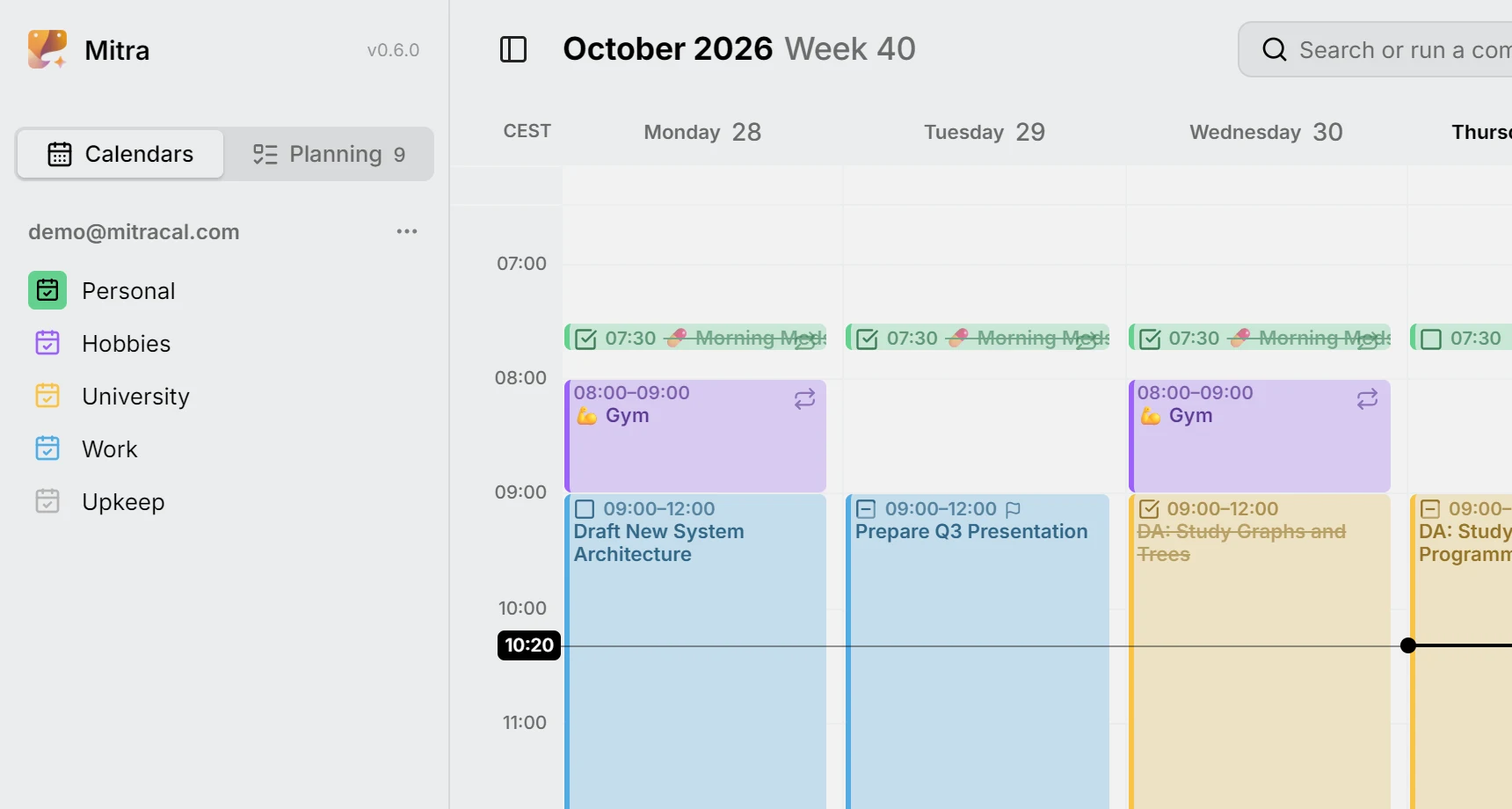
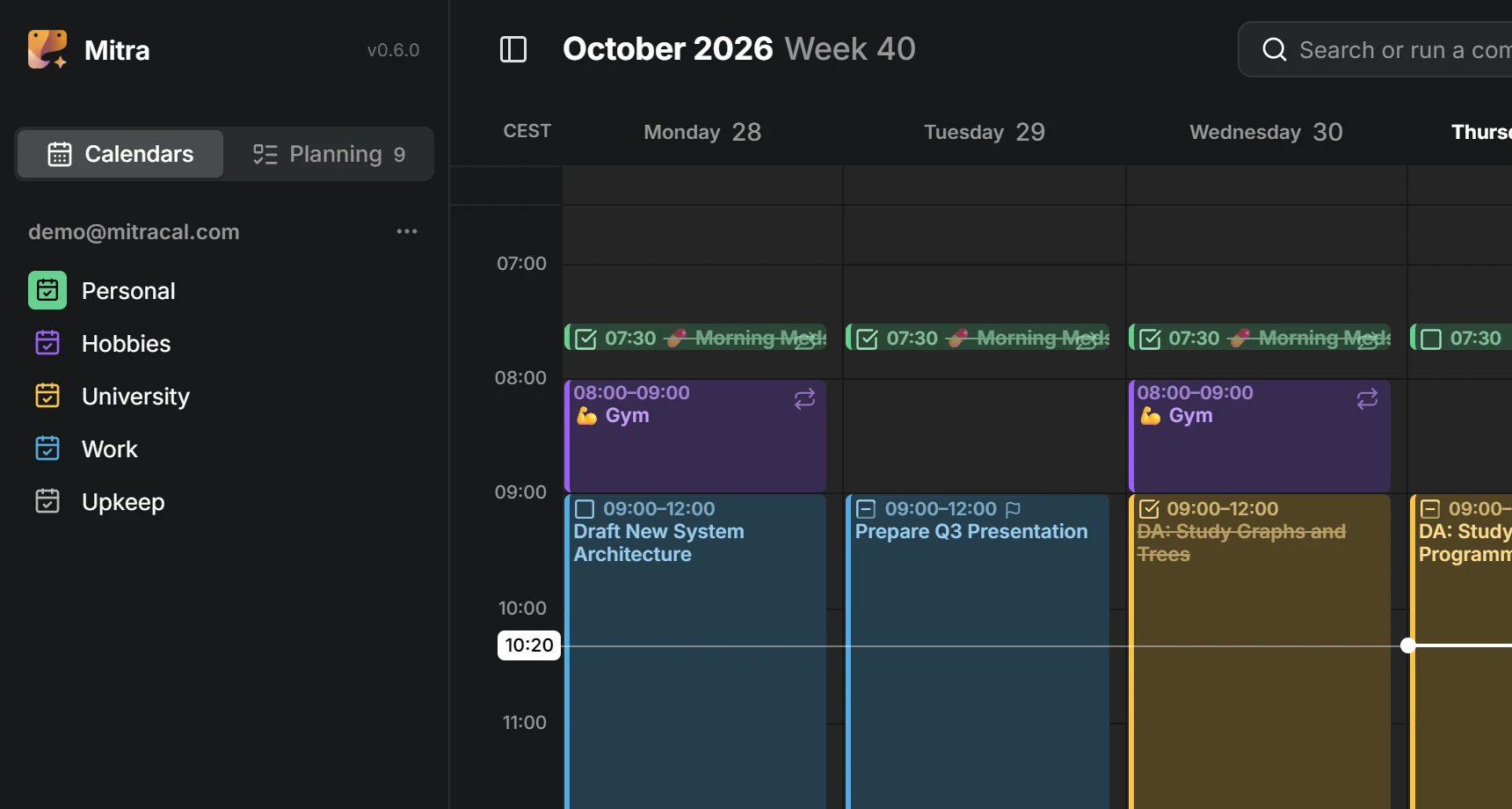
A calendar is one row, even when it holds both events and tasks, as most CalDAV calendars do. Whether a given entry is an event or a task belongs to the entry.
Choose what gets imported
Section titled “Choose what gets imported”When you connect an account, Mitra finds its calendars and lists them, all ticked, each saying what it holds, such as “Events · Tasks”. Untick the ones you don’t want before you save. You can change your mind later under the account’s ⋯ → Edit, where calendars added to the account since then wait unticked. Mitra only syncs and stores the calendars that are turned on, so the others cost nothing.
Add or delete a calendar
Section titled “Add or delete a calendar”A calendar from a connected account is created and deleted at the provider, and Mitra notices on its next sync. Mitra calendars are the exception: add one with New calendar in the ⋯ menu on the Mitra heading, and delete one with Delete calendar in its own ⋯ menu. If it still has entries, Mitra offers Move entries first…, so nothing is lost by accident.
Hide a calendar
Section titled “Hide a calendar”The eye at the end of a row hides that calendar’s entries. Hiding is only about what you see: the calendar keeps syncing, and its entries come straight back when you show it again.
Hiding doesn’t mute a calendar, so its reminders still go off. To stop a calendar entirely, turn it off under its account’s ⋯ → Edit.
Show only one calendar
Section titled “Show only one calendar”To clear everything else away, choose Only show this calendar in a calendar’s ⋯ menu, or Alt-click its eye. Every other calendar hides, and Mitra remembers which ones you had showing. The same menu item then reads Show previously visible calendars and brings them back.
Calendars that were already hidden before stay hidden. A calendar you connected in the meantime shows, since it wasn’t part of what you put away. Showing a calendar by hand doesn’t cost you the way back to the rest either. You can also do both from the command palette by searching for a calendar’s name.
Rename
Section titled “Rename”Double-click a calendar’s name, or choose Rename in its ⋯ menu. The name is yours: syncing never overwrites it. Mitra only takes the provider’s name again when the calendar is actually renamed there.
Recolor
Section titled “Recolor”Pick a color in the calendar’s ⋯ menu. Until you do, a calendar uses the color its provider gives it. If the provider gives none, Mitra picks one from the calendar’s address, so it looks the same on every device. Entries take their calendar’s color unless they have a color of their own.
Reorder
Section titled “Reorder”Calendars start in the order Mitra found them, and accounts in the order you connected them. To arrange them yourself, drag a calendar up or down within its account, or drag an account by its heading to move it with all its calendars. On a touch screen, press and hold for a moment before you drag, since a plain swipe scrolls the list. Move up and Move down in the ⋯ menu do the same without dragging.
A calendar only moves within its own account. A calendar you turn on later joins the end of its account, so it doesn’t disturb the order you set.
Where new entries land
Section titled “Where new entries land”The calendar with the filled icon is your default: new entries go there unless you pick another. Click a calendar’s icon to make it the default, and click the default’s icon again to clear it. Without a default, new entries go to the first calendar in the list, so moving a calendar to the top also makes it the default. The same choice is under Settings → Entries.
New entries are events, unless the calendar can only hold tasks, as a Notion view can. While an entry is new, its editor has an Event / Task switch. Once it’s saved, change it with Type in the editor, as long as its calendar can hold the other kind. A repeating entry keeps its type.
Move or copy every entry to another calendar
Section titled “Move or copy every entry to another calendar”Move entries to… in a calendar’s ⋯ menu, or Move entries from … in the command palette, moves everything in it to another calendar at once. Pick where they should go, and before anything happens, Mitra shows you what the move would cost:
19 of 21 entries move to Personal✓ 15 arrive with everything they carry! 4 lose their reminders⨯ 2 repeat and stay hereThe report depends on what the destination can hold, so it reads differently for a CalDAV calendar than for a Notion view. Entries the destination can’t take at all, like a repeating entry going to Notion, stay where they are and are listed by name.
Copy instead leaves the originals where they are and puts a copy of each in the destination. That’s also how you take entries out of a read-only calendar, such as a subscription: it can be copied from, but not moved out of.
Links between the entries you move come along, even into Notion, which gives every page a new ID. Links from entries that stay behind keep pointing at the ones that moved.
If the destination can’t repeat entries, Mitra asks what to do with the repeating ones: leave them here, or flatten them into single entries, one for each occurrence in the coming year, that no longer repeat. It never flattens without asking.
NOTE
Mitra copies first and deletes the originals only once their copies have landed. There’s no undo across two providers, so this order is the safety net: if something goes wrong, you may end up with an entry in both calendars, but never with one missing. If copying fails, the whole move stops and nothing is deleted.
Move a single entry
Section titled “Move a single entry”To move one entry, open it and pick another calendar in its editor. For a repeating entry, Mitra asks which ones you mean. This entry moves that one occurrence on its own, This and following entries moves the rest of the series and leaves the earlier occurrences behind, and All entries moves the whole series, repeat rule and all.
Read-only calendars
Section titled “Read-only calendars”Some calendars can’t be changed from Mitra: calendar subscriptions, and calendars someone shared with you to view only. Mitra notices this on its own and marks them read-only.
You can open their entries and read, select and copy everything in them, but you can’t create, change, move or delete entries there, and an entry can’t be moved into one. Renaming, recoloring, reordering and hiding still work, since those are your own view of the calendar. If the owner later lets you make changes, Mitra notices on the next sync.
Re-import a calendar
Section titled “Re-import a calendar”Re-import entries, in the ⋯ menu of a calendar or of a whole account, throws away Mitra’s copy of the entries and imports them again from the provider. Nothing at the provider changes. You shouldn’t need it day to day, since syncing takes care of itself; it’s there for when a calendar looks wrong or out of date after an update. Mitra calendars don’t offer it, as there’s no provider to import from.