
Table view
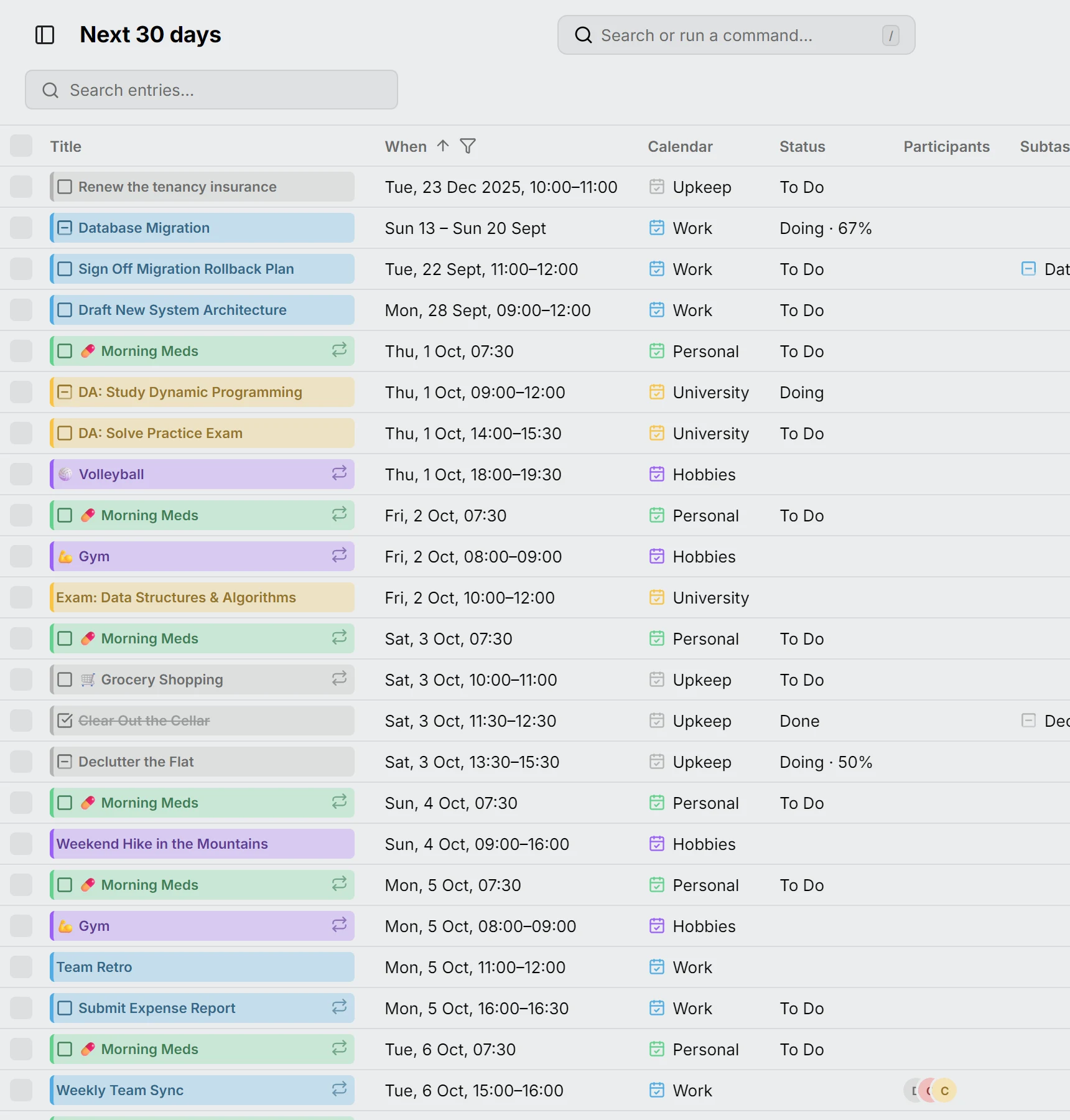
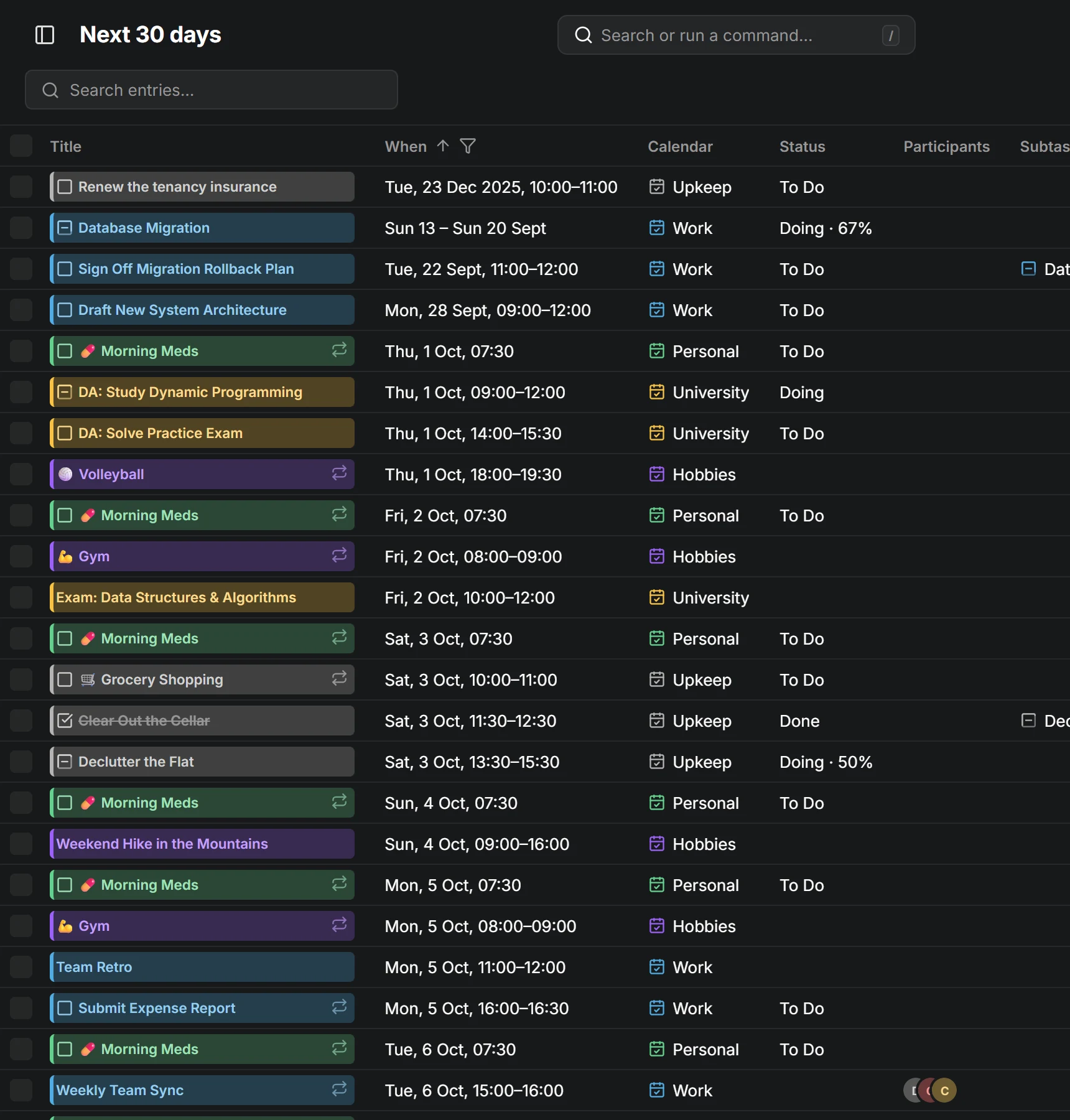
The Table view lists your entries as rows instead of drawing them on a grid. Open it with S or from the view picker.
Every row is one entry, and each occurrence of a repeating entry gets a row of its own. Its title is the same chip the calendar draws: click it to open the entry’s editor.
Which entries
Section titled “Which entries”The table lists the entries of a span of days counted from today, named in the page heading: Past 30 days, Today, Next 7 days, Next 30 days (where it starts), Next 12 months, All entries, or a Custom range of two dates. Choose it in the When column’s menu. The count beside the search field is how many rows are listed.
Tasks without a date, and open tasks that are overdue, are listed whichever span you choose, so the default shows the backlog and the coming month together.
All entries is for tidying up. A repeating entry is one row there, standing for the whole series: its When says where it starts, and moving or deleting it moves or deletes every occurrence. Its status stays with each occurrence, so the status buttons skip it.
Today in the page header, and G for another date, scroll to that day’s first row without changing the span.
Search, sort and filter
Section titled “Search, sort and filter”The search field matches every word you type against the title, the location, the description and the calendar.
Click a column’s heading for its menu:
- Sort ascending or Sort descending. Choose the active one again to remove it. Hold Shift to sort by several columns.
- The column’s filter, where it has one: untick the values to leave out. Hold Alt to keep just the one you click. The Status filter’s No status stands for events, so unticking it lists tasks alone.
- Hide column, which also lifts the column’s filter.
The Status, Calendar, Type and Repeats columns can filter, and When holds the span of days. A funnel beside a heading shows the column is leaving rows out. Title and When cannot be hidden.
Columns
Section titled “Columns”The table starts with Title, When, Calendar, Status, Location, Participants, Subtask of and Blocked by. The button at the end of the heading row shows the others (Duration, Type, Repeats, Reminders and Description), and Reset columns puts the defaults back.
Every column is as wide as its content. Drag a heading to move its column, and its edge to resize it; double-click the edge to fit the column to its content again.
Change many at once
Section titled “Change many at once”Click a row to select it, hold Ctrl (⌘) to add rows, Shift to select a range, or use the checkboxes. A bar above the rows then offers:
- To Do, Done and Cancelled for the selected tasks;
- Move to… another calendar;
- Delete, after asking.
For a repeating entry these change the selected occurrence only, except under All entries, where the row is the whole series. To change a series from any other span, open its editor.
With the keyboard, Space selects the row you’re on and Enter opens it. Escape clears the selection and Delete deletes it.
New entries
Section titled “New entries”Create in the page header, or C, starts an entry for today and opens it as a row of the table.