
Planning
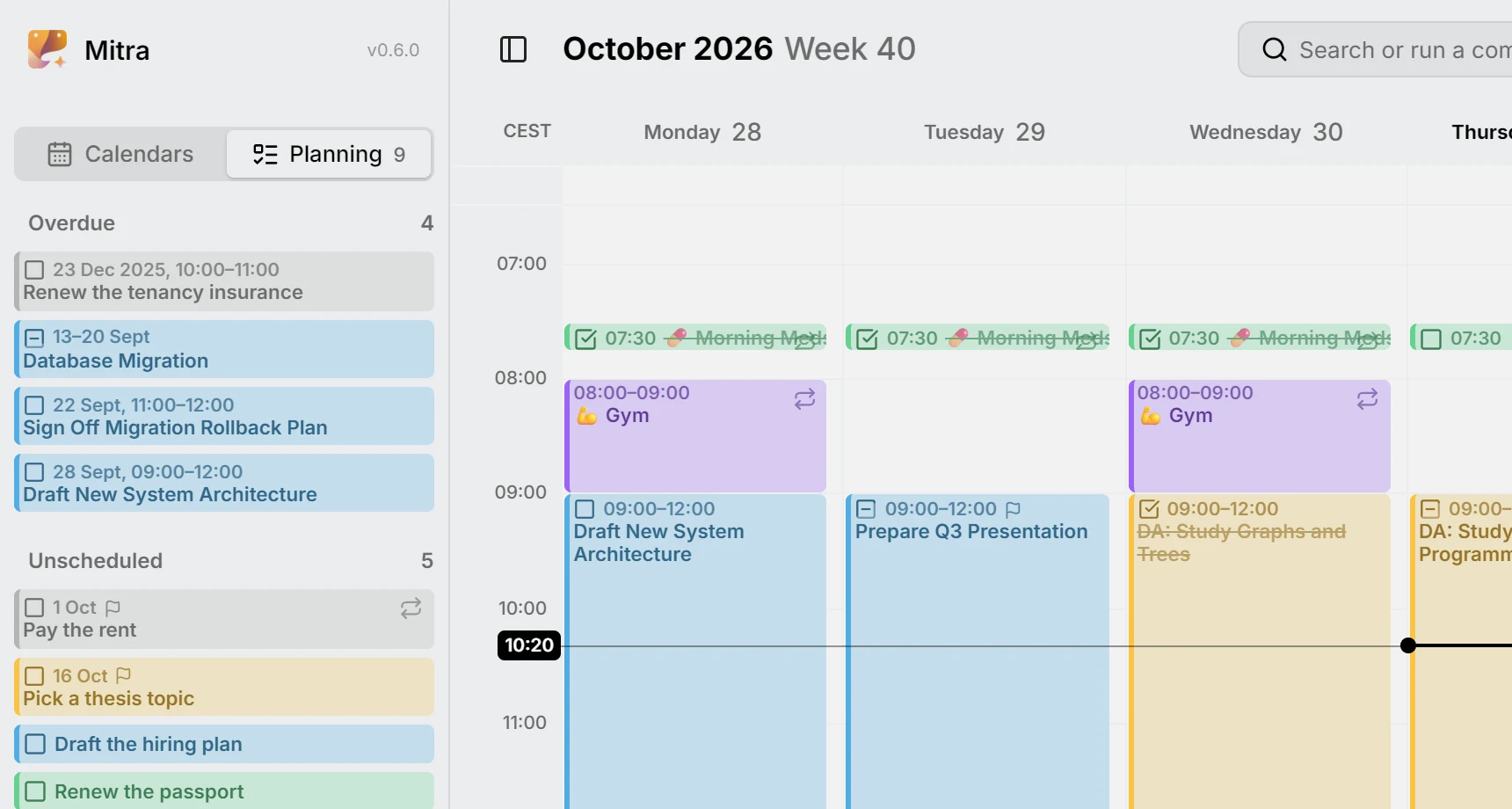
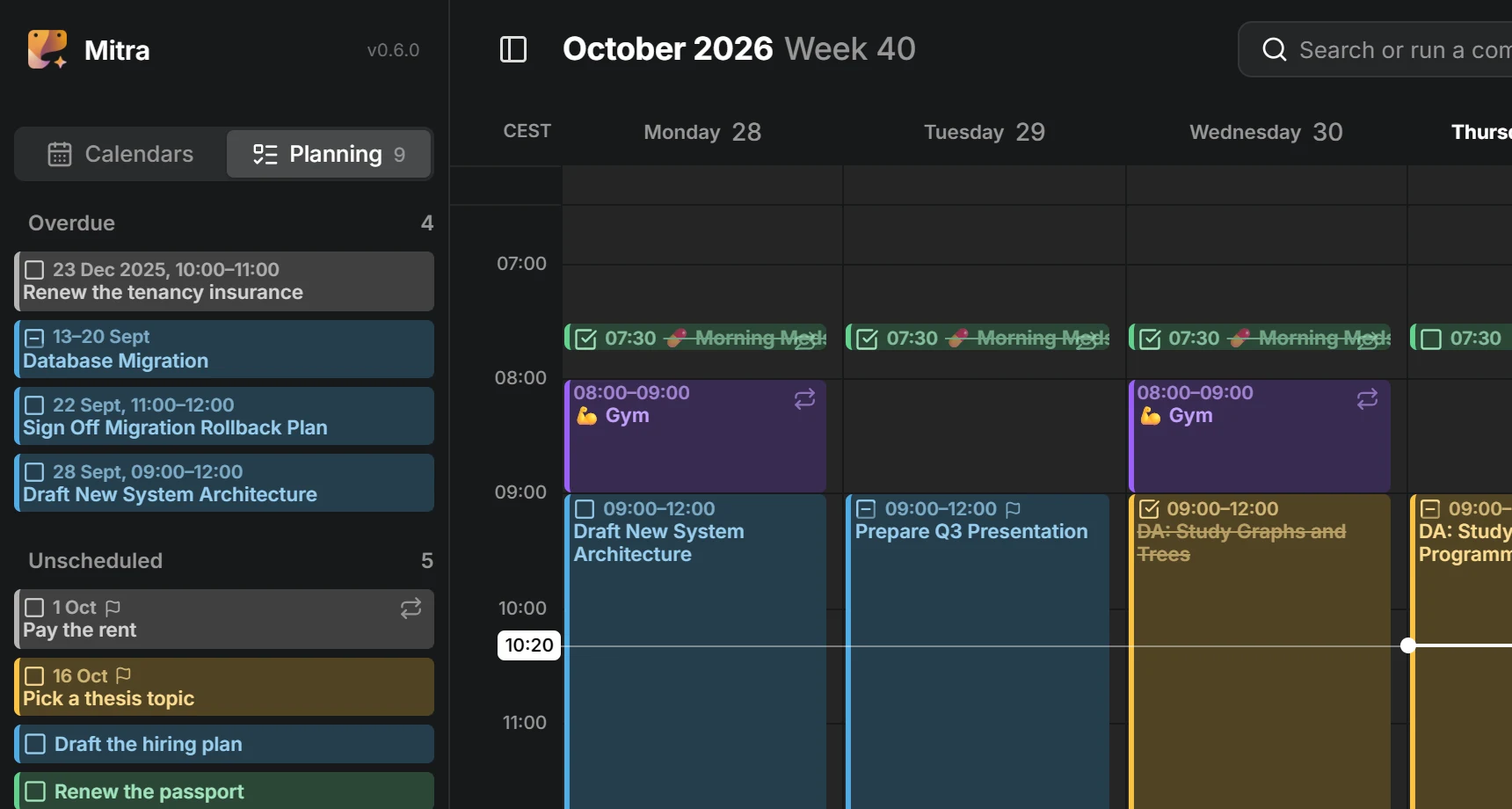
Planning is about tasks that don’t have a place in your week yet: ideas you want to keep, work with a due date but no plan, and things you just haven’t gotten to. They wait in the sidebar’s Planning tab with a due date and an estimate, until you drag them into your week.
This page covers the Planning tab, due dates, estimates, scheduling and unscheduling tasks, and overdue tasks.
Schedule, constraints and planning
Section titled “Schedule, constraints and planning”Mitra separates two kinds of information about a task’s time.
- The schedule is when you’ll work on the task: its start and end. It’s what the views show. A task with a schedule is scheduled, and a task without one is unscheduled.
- The constraints are what the schedule has to respect. A task has two: its due date, when it has to be done, and its estimate, how long it will take.
Planning is scheduling your unscheduled tasks so that each schedule fits its constraints: it ends before the due date, and it’s as long as the estimate. Mitra takes the estimate into account for you, so a task you schedule already has the right length.
Neither the schedule nor the constraints are required. A task can have a due date and no schedule, a schedule and no due date, both, or neither.
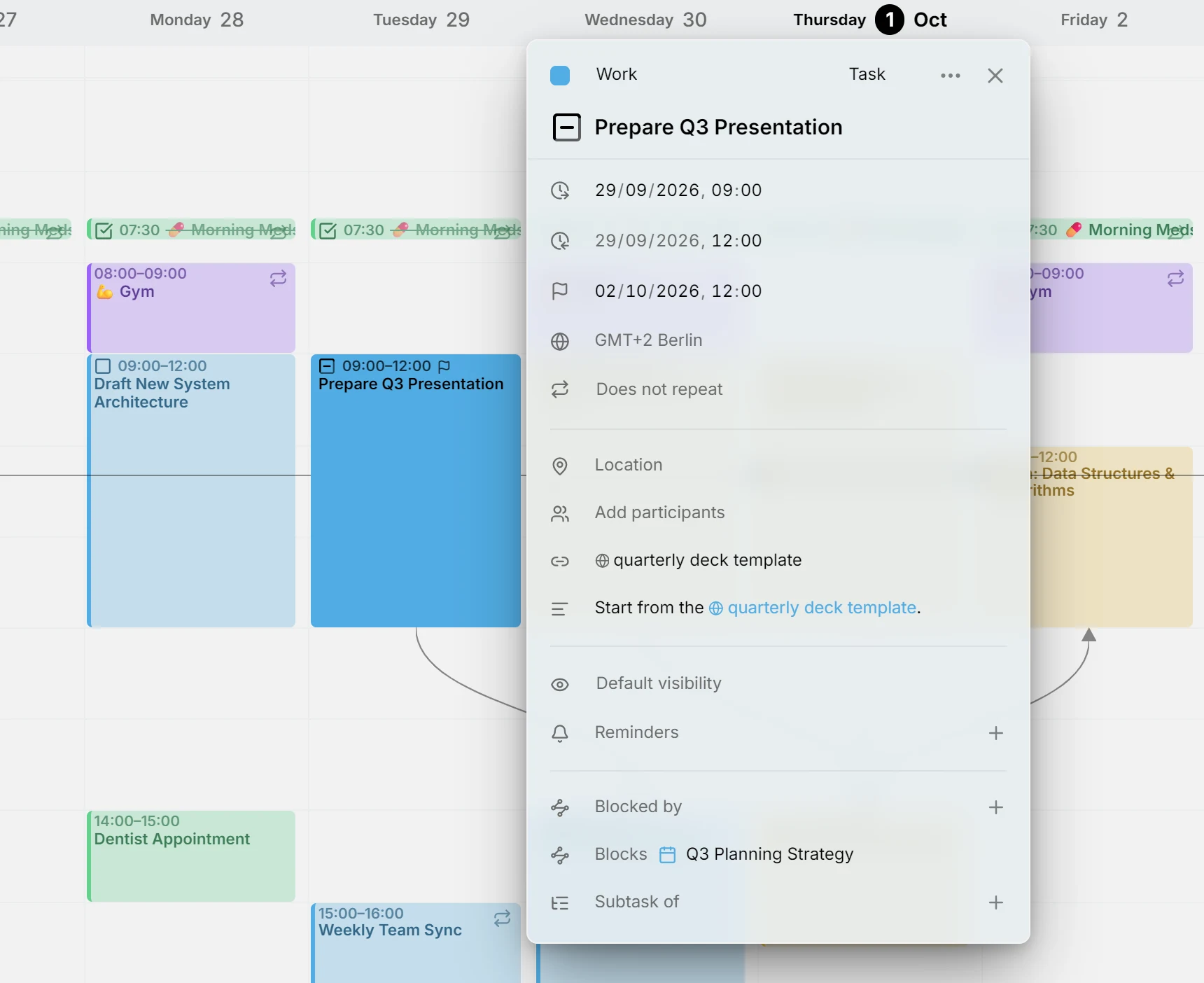
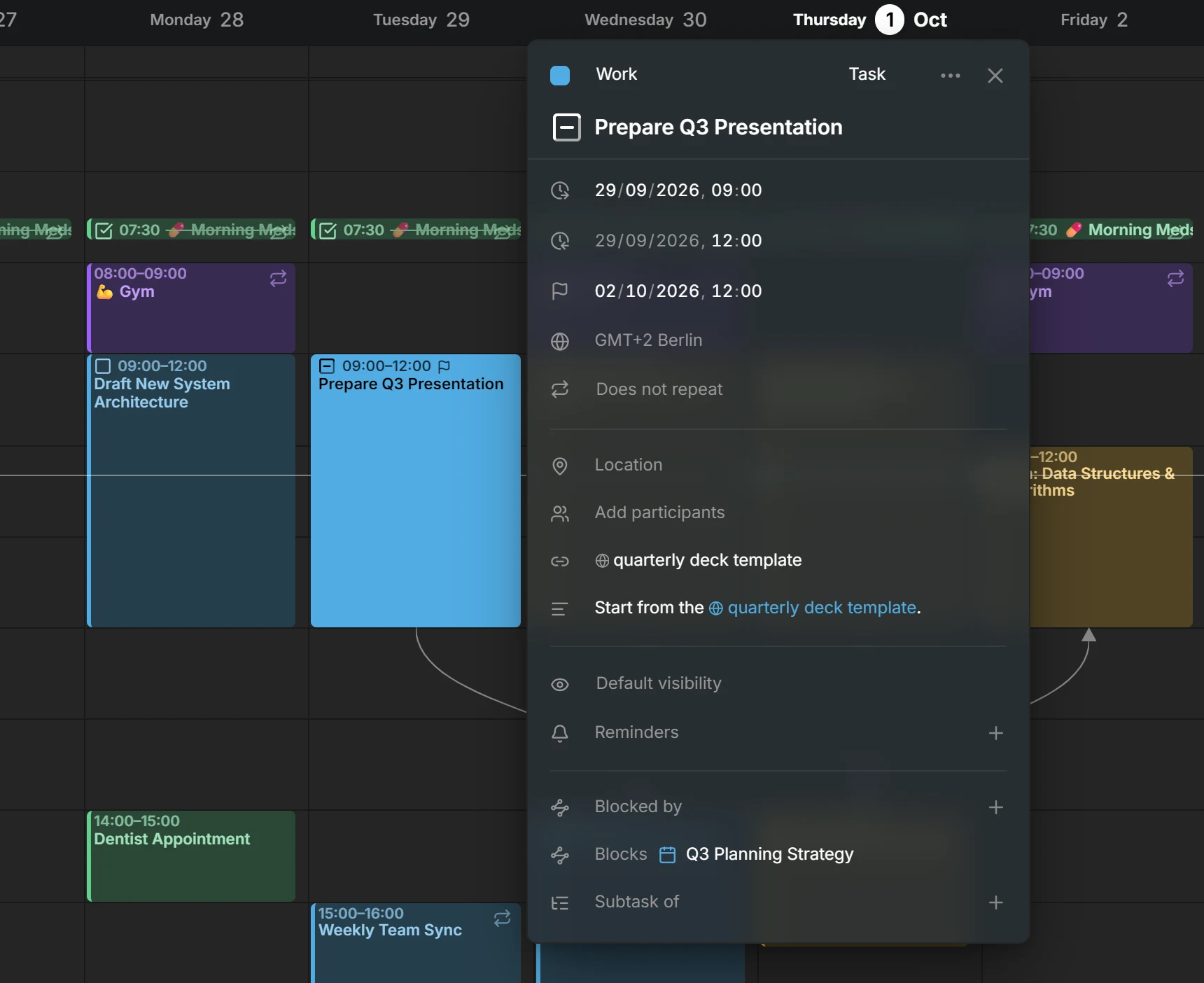
For example, a presentation is due on Friday at noon, and you schedule Tuesday morning to prepare it. The views show the task on Tuesday, and a small flag beside it shows that it has a due date.
The Planning tab
Section titled “The Planning tab”The sidebar’s Planning tab is where you plan: your unscheduled tasks wait there until you schedule them. Open the sidebar and switch to Planning. You can also swipe sideways from Calendars, with two fingers on a trackpad or one finger on a touch screen.
The tab has two lists:
- Unscheduled holds every unscheduled task. Until you put them in order, tasks with a due date come first, the soonest at the top. The rest follow in alphabetical order, and finished tasks move to the bottom.
- Overdue holds the tasks you’ve fallen behind on. See overdue tasks.
The number on the tab counts both lists, so you can see how much is waiting from the Calendars tab too. Click a task to open it, as you would in the views.
To note down a task for later, press Add Task at the bottom of the tab. It only asks for a title. The task goes to your default calendar, or to the first calendar that can hold tasks if your default can’t.
Put tasks in order
Section titled “Put tasks in order”Drag a task up or down the Unscheduled list to reorder it. The order is saved, and a task keeps its place when it moves to another calendar.
Your order comes before due dates. New tasks appear below the ones you’ve placed, and finished tasks stay at the bottom.
Mitra keeps the order itself, so other apps don’t see it.
Set a due date
Section titled “Set a due date”Open the task, press Due date and pick a day. To remove the due date, press the ✕ beside it.
A task with a due date shows a small flag, in the views and in the Planning tab. Scheduling, unscheduling or moving the task never changes its due date.
An all-day task is due on a day. To give it a time, turn off All day at the end of the due date, which shows while you’re on it. That gives the whole task times, so its due date becomes 17:00 on the same day, which you can change.
Set an estimate
Section titled “Set an estimate”An unscheduled task has an Estimate field, with an hourglass, where a scheduled task has its end. Click it and type the hours and minutes, or pick a length from the list.
Only unscheduled tasks have an estimate. When you schedule a task, its estimate becomes the length of its schedule. When you unschedule it, the length of its schedule becomes its estimate again, so nothing is lost either way.
Schedule a task
Section titled “Schedule a task”Scheduling gives a task a start and an end. There are two ways to do it.
Drag it into a view
Section titled “Drag it into a view”Drag the task out of the Planning tab and drop it in a view.
- On a time of day in the week view, the task starts where you drop it and lasts as long as its estimate. Without an estimate, it lasts your default duration.
- In the all-day lane of the week view, or on a day in the month or year view, the task becomes all-day. It covers as many days as its estimate, and at least one.
Afterwards, drag its edge to make it longer or shorter, like any other entry.
Set a start date
Section titled “Set a start date”Open the task, press Start date and pick a day.
- If its estimate is shorter than a day, the task starts at 9:00 and lasts as long as its estimate.
- Otherwise, the task becomes all-day, covering as many days as its estimate, and at least one.
The view moves to that day, and the task stays open, so you can adjust its times right away. This works everywhere, including on a phone, where the open sidebar covers the view and there’s nowhere to drag to.
Unschedule a task
Section titled “Unschedule a task”Unscheduling removes a task’s schedule and returns it to the Planning tab. There are two ways to do it:
- Drag the task out of the view and drop it on the Unscheduled list.
- Open the task and press the ✕ beside its start date. The Planning tab opens, with the task still open.
The task keeps its due date, and the length of its schedule becomes its estimate. Its reminders stay if it has a due date for them to count down to, and are removed otherwise.
The ✕ beside the end date does something else. It doesn’t unschedule the task, it turns it into a moment.
NOTE
Only tasks can be unscheduled. An event always has a date. A task that repeats on a schedule, such as a weekly review, can’t be unscheduled either.
Overdue tasks
Section titled “Overdue tasks”A task is overdue when it isn’t finished and its day has passed. Its day is its due date, or, without a due date, the last day of its schedule. The Overdue list shows these tasks, the most overdue first.
Mitra counts whole days, so a task due this morning only becomes overdue tomorrow.
A task leaves the list when you mark it done. You can also give it a later due date, or, if it has no due date, schedule it on a later day.
Repeating due dates
Section titled “Repeating due dates”Some tasks are due again and again, such as paying the rent by the 1st of every month. Give the task a due date and set it to repeat.
The Unscheduled list shows only the next one, so it doesn’t fill up with every month at once. When you schedule it, only that month’s task is scheduled, and next month’s takes its place in the list.
Repeating tasks are never overdue.
Moments
Section titled “Moments”A moment is a scheduled task with a start and no end, for something you do at one point in time rather than over a stretch of it, such as taking your morning medication at 7:30. In the week view it shows as a slim, one-line entry at its start time.
To turn a task into a moment, open it and press the ✕ beside its end date. To give it an end again, press End date.
Which calendars support this
Section titled “Which calendars support this”Every change is saved straight to the calendar the task belongs to.
- Calendars stored in Mitra support everything on this page.
- Calendar servers support everything too. Other apps using the same calendar see the task’s start and due date.
- Notion supports schedules, but no constraints, because a Notion database holds a single date for each task.