
Repeats
A repeating entry is one entry with a repeat rule, such as a team meeting every Monday or rent due on the 1st of every month. This page calls the whole thing a series, and each of its dates an occurrence. Every occurrence shows a small repeat icon in the views.
Make an entry repeat
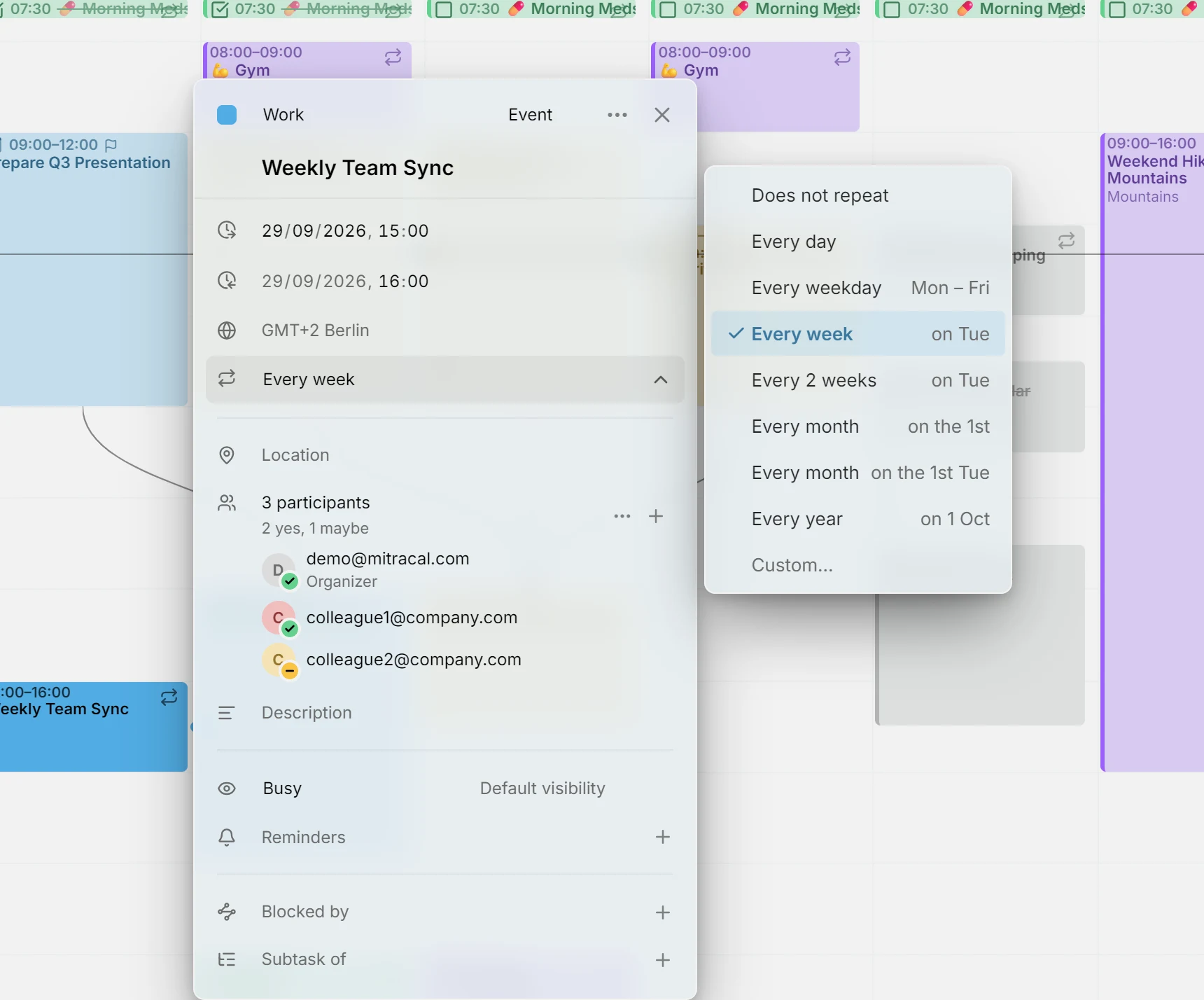
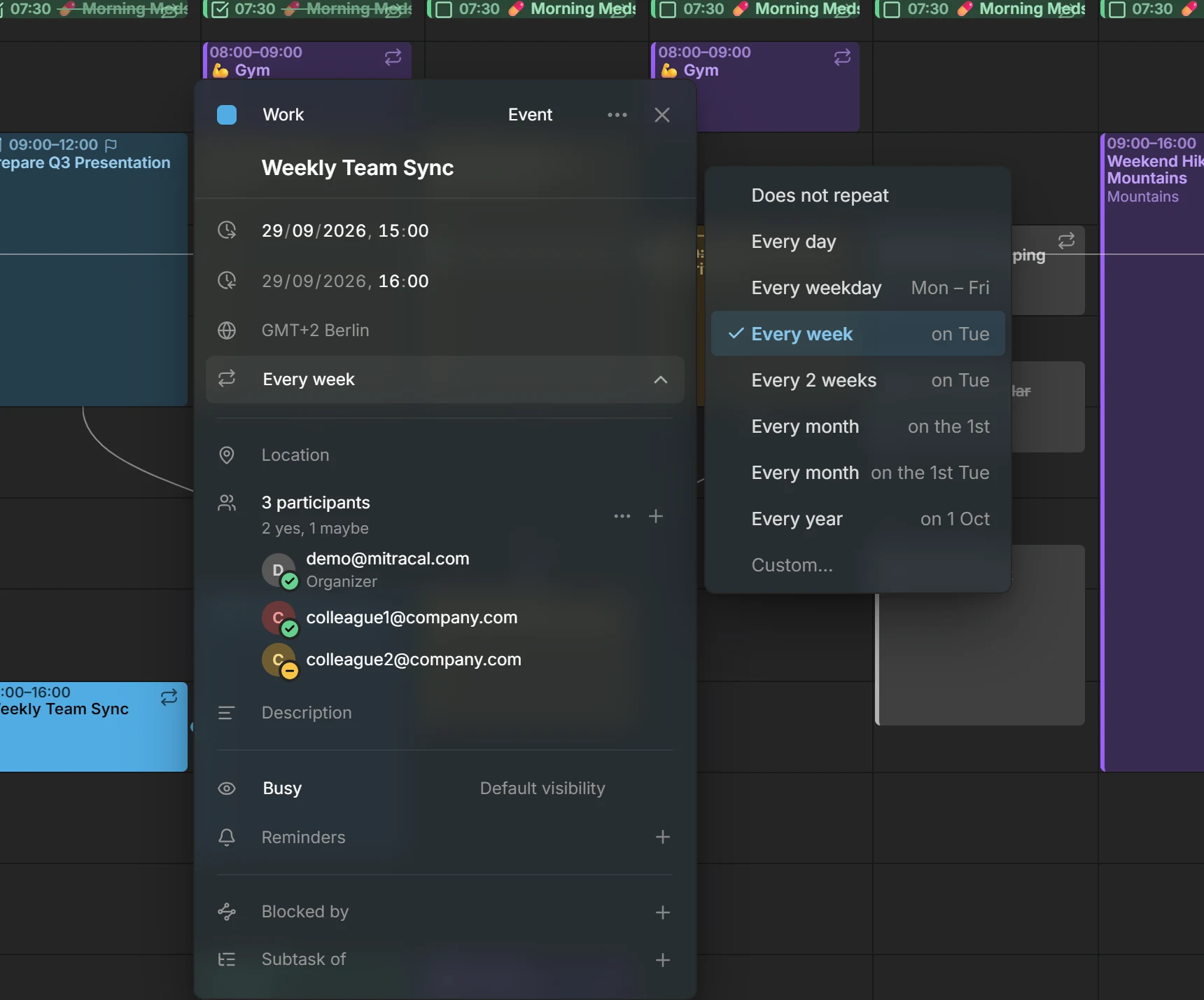
Section titled “Make an entry repeat”Open the entry and pick a rule in its Repeat row. The row shows once the entry has a date: a start, or a due date for an unscheduled task.
The list offers rules built from the date the series starts, even when you opened a later occurrence. For an entry on Tuesday the 13th, it offers Every day, Every weekday (Monday to Friday), Every week on Tuesday, Every 2 weeks on Tuesday, Every month on the 13th, Every month on the 2nd Tuesday, and Every year on that date. When the start falls in the last seven days of its month, there is also Every month on the last Tuesday.
To stop an entry repeating, pick Does not repeat. A change to the rule always applies to the whole series, so Mitra doesn’t ask which occurrences you mean.
Custom rules
Section titled “Custom rules”For anything else, pick Custom….
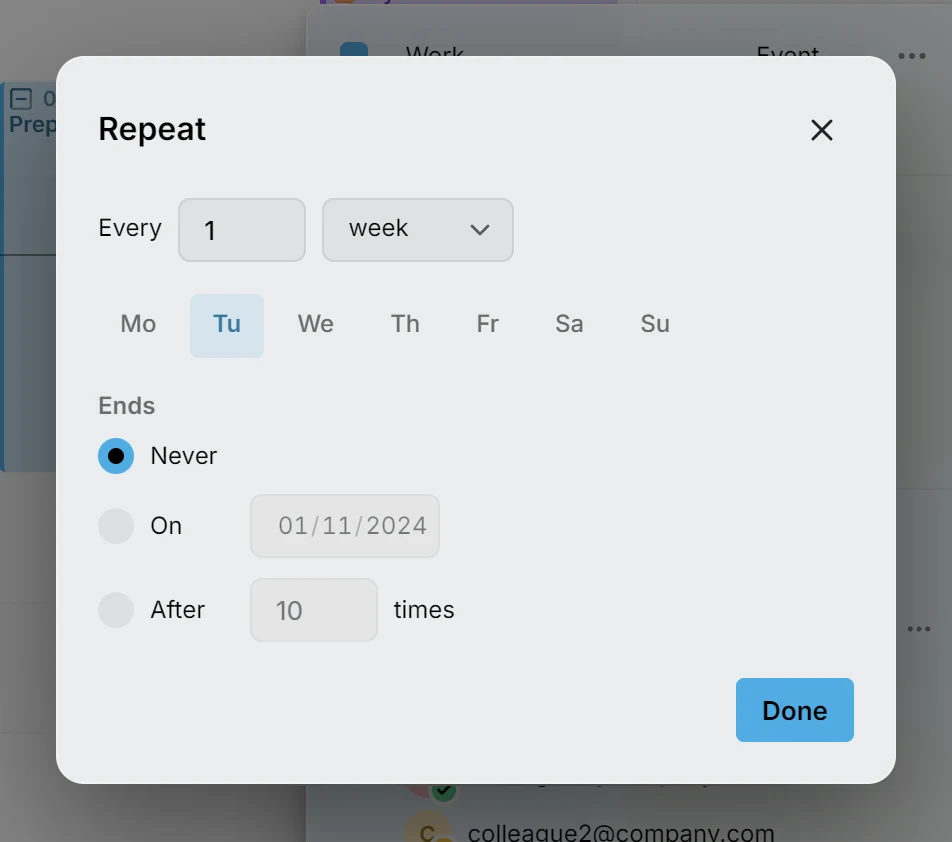
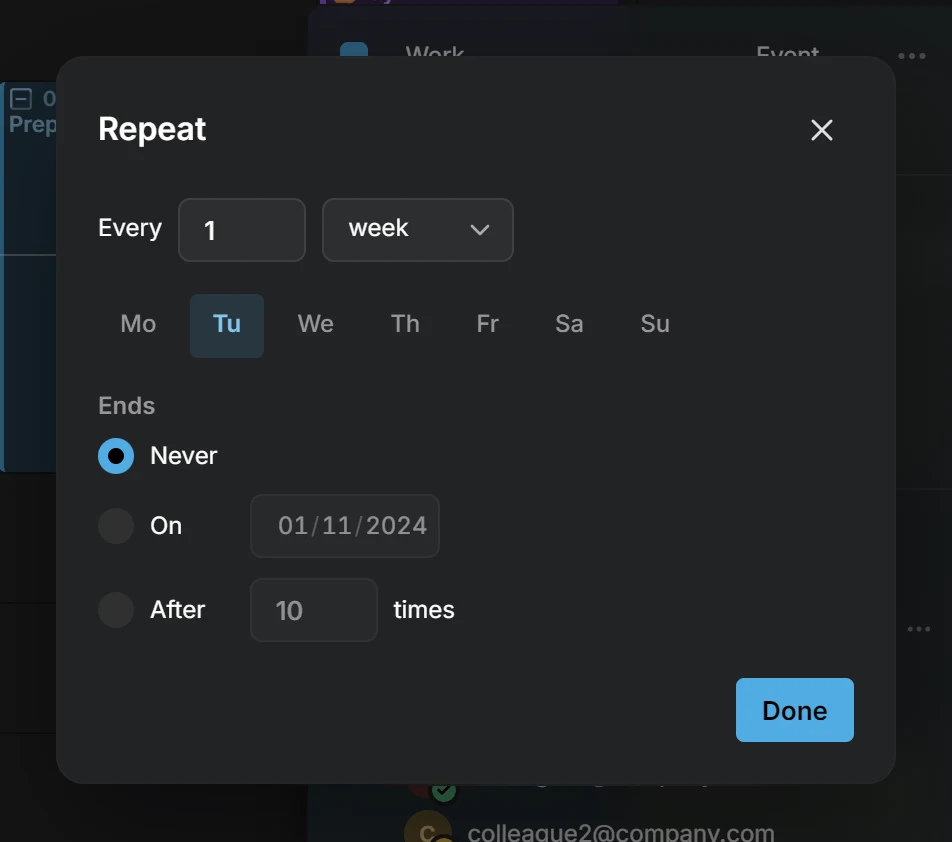
After Every, type a number and pick days, weeks, months or years. A weekly rule then shows the days of the week: turn on each day the entry repeats on, and at least one stays on. A monthly rule repeats on the same day number as the start, such as the 13th, or on the same weekday of the month, such as the 2nd Tuesday. When the start is in the last seven days of its month, it can also repeat on the last Tuesday.
Under Ends, choose Never, On a date, or After a number of times. Press Done, and the Repeat row reads the rule back, such as “Every 2 weeks on Thu until Dec 18”.
Change or delete one occurrence
Section titled “Change or delete one occurrence”When you change an occurrence, Mitra asks which entries you mean. It asks when you drag the occurrence to another time, drag its edge, delete it, or change a field in its editor, such as its title.
- This entry changes only the occurrence you picked.
- This and following entries changes it and every later one. The series ends just before it, and a new series starts there with your change, so the earlier occurrences stay as they were. The first occurrence doesn’t offer it, since there it would mean the whole series.
- All entries changes every occurrence. Moving one by a day moves all of them, so a weekly meeting on Monday becomes a weekly meeting on Tuesday. Resizing one gives them all the new length.
Deleting works the same way: This entry removes one date, This and following entries ends the series before it, and All entries deletes the series.
To skip the question and change only this occurrence, hold Ctrl (⌘ on a Mac) while you drop it, or press Ctrl + Delete while it’s open.
A few changes never ask. Marking a task occurrence done applies to that occurrence alone, and so does scheduling one occurrence of a task that repeats by its due date.
Changed and deleted occurrences
Section titled “Changed and deleted occurrences”An occurrence you change with This entry leaves the series and becomes an entry of its own. The series skips its date, so it never shows twice, and later changes to the whole series don’t reach it.
A deleted occurrence stays deleted. It doesn’t come back when you later move or change the whole series, and other apps using the same calendar leave it out too.
Move a series to another calendar
Section titled “Move a series to another calendar”Pick another calendar in the editor of an occurrence, and the same question decides whether that occurrence, the rest of the series or the whole series moves, as described in Move a single entry.
Repeating tasks
Section titled “Repeating tasks”Each occurrence of a repeating task is a task of its own to mark done. A task can also repeat by its due date alone, such as paying the rent by the 1st of every month: see repeating due dates. Repeating tasks are never overdue, and they can’t be unscheduled, since their dates are what make up the series.
How repeats show
Section titled “How repeats show”Something that repeats often, like a daily workout, shows as a routine in the month and year views: a line of small marks instead of a bar for each day. The timeline shows only the occurrences of a repeating task that are due, so a daily task doesn’t fill it.
Which calendars can repeat
Section titled “Which calendars can repeat”Calendars stored in Mitra and calendar servers, Google and Apple included, hold repeating entries. Notion and Tempo calendars can’t, so their editor has no Repeat row, and a series’ editor doesn’t offer them as its calendar.
When you move every entry of a calendar into one that can’t repeat, Mitra asks what to do with the repeating ones. Leave them here keeps them where they are. Flatten into single entries writes out every occurrence in the coming year as a separate entry that no longer repeats.
Availability is a repeating entry too, and starts out weekly. For the same reason, it can’t live in Notion or Tempo calendars.