
Week view
The week view shows your days hour by hour, one column per day. Events and tasks sit side by side in the same columns, so you see the time you have left for your tasks. Open it with W.
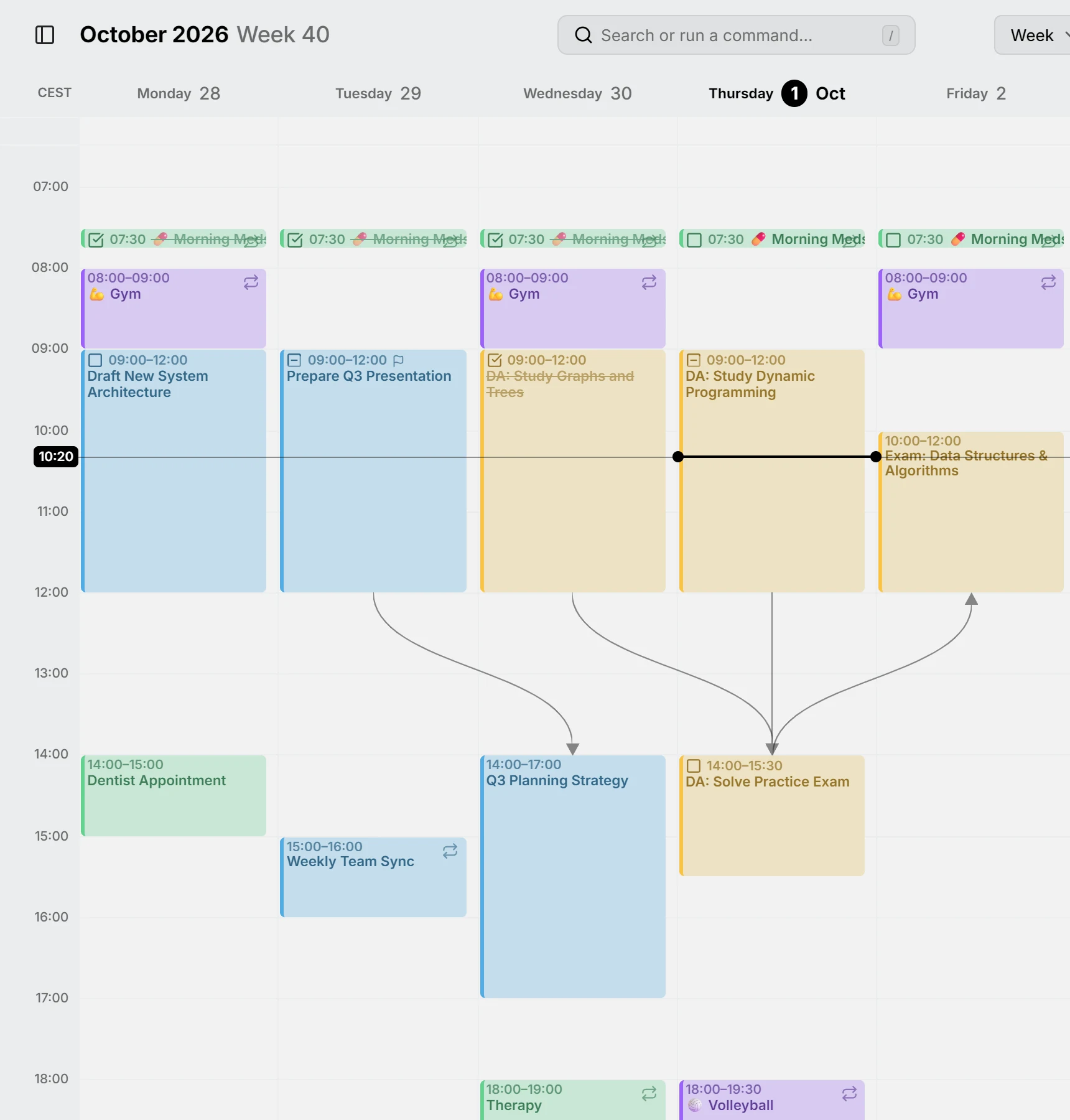
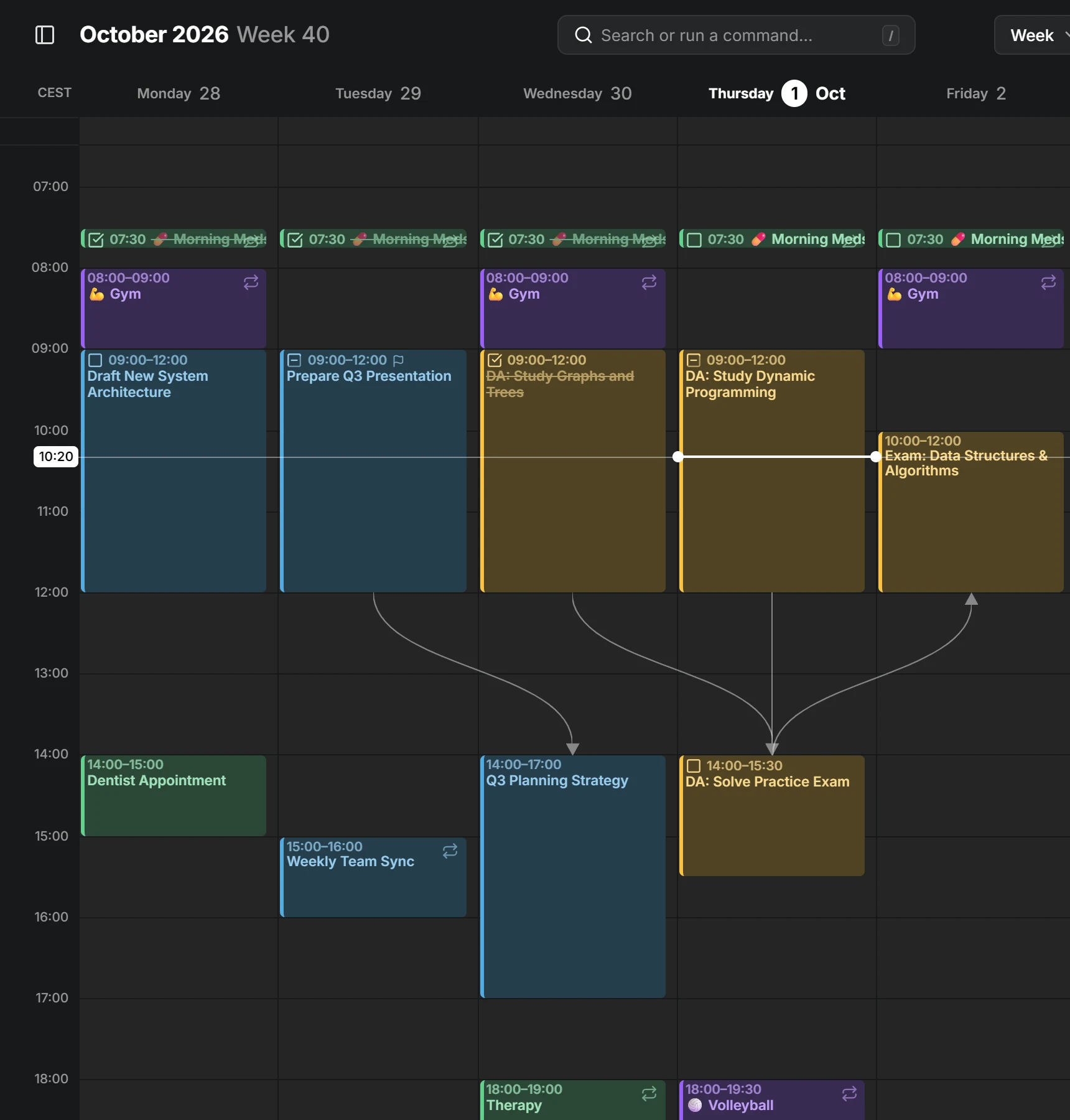
All-day entries sit in the lane along the top. When entries overlap, they share the column side by side.
Create, move and resize
Section titled “Create, move and resize”Drag across empty time to create an entry, and drag an entry to move it or its edge to resize it. An entry you create in the all-day lane is all-day, and one you create below it has times. To switch it later, open it and press All day at the end of a date, which shows while you’re on that row.
Moving and resizing snap to a step you choose with Snap to in Settings. Hold Alt while you drop to duplicate the entry instead of moving it.
What else it shows
Section titled “What else it shows”- Lines between dependent entries and from tasks to their subtasks.
- Your availability, shaded in the color of its calendar.
- A line across today at the current time.
Other time zones
Section titled “Other time zones”The week view can show the hours of other time zones beside your own. Point at the top of the time column and press + (Add time zone) to add one, and click a zone’s name to rename or remove it. Time zones covers folding the extra columns away, and the time zone each entry has of its own.