
Availability
Availability is time you set aside on a regular basis, like work from Monday to Wednesday, study time on Thursday and Friday, or the household on Saturday. Mitra shades it in the Week view, in the color of its calendar.
Availability belongs to a calendar, next to that calendar’s events and tasks. Your working hours go in your work calendar, and your study time in your university calendar. It isn’t an appointment, so Mitra keeps it itself instead of adding it to your account. Busy availability is the one exception.
It is the usual shape of your week, not a fence. A dentist appointment in the middle of your working hours is fine.
Named or not
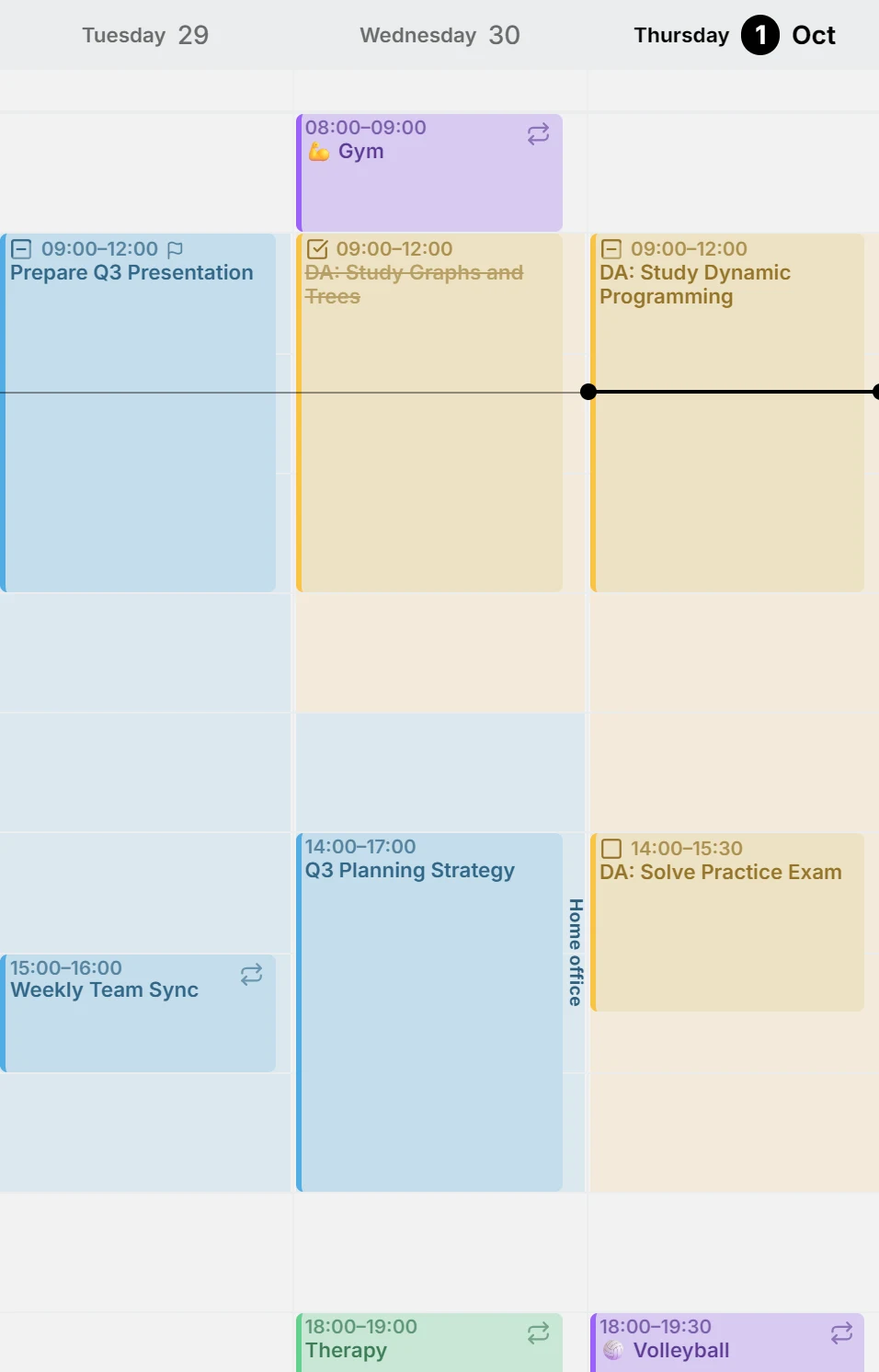
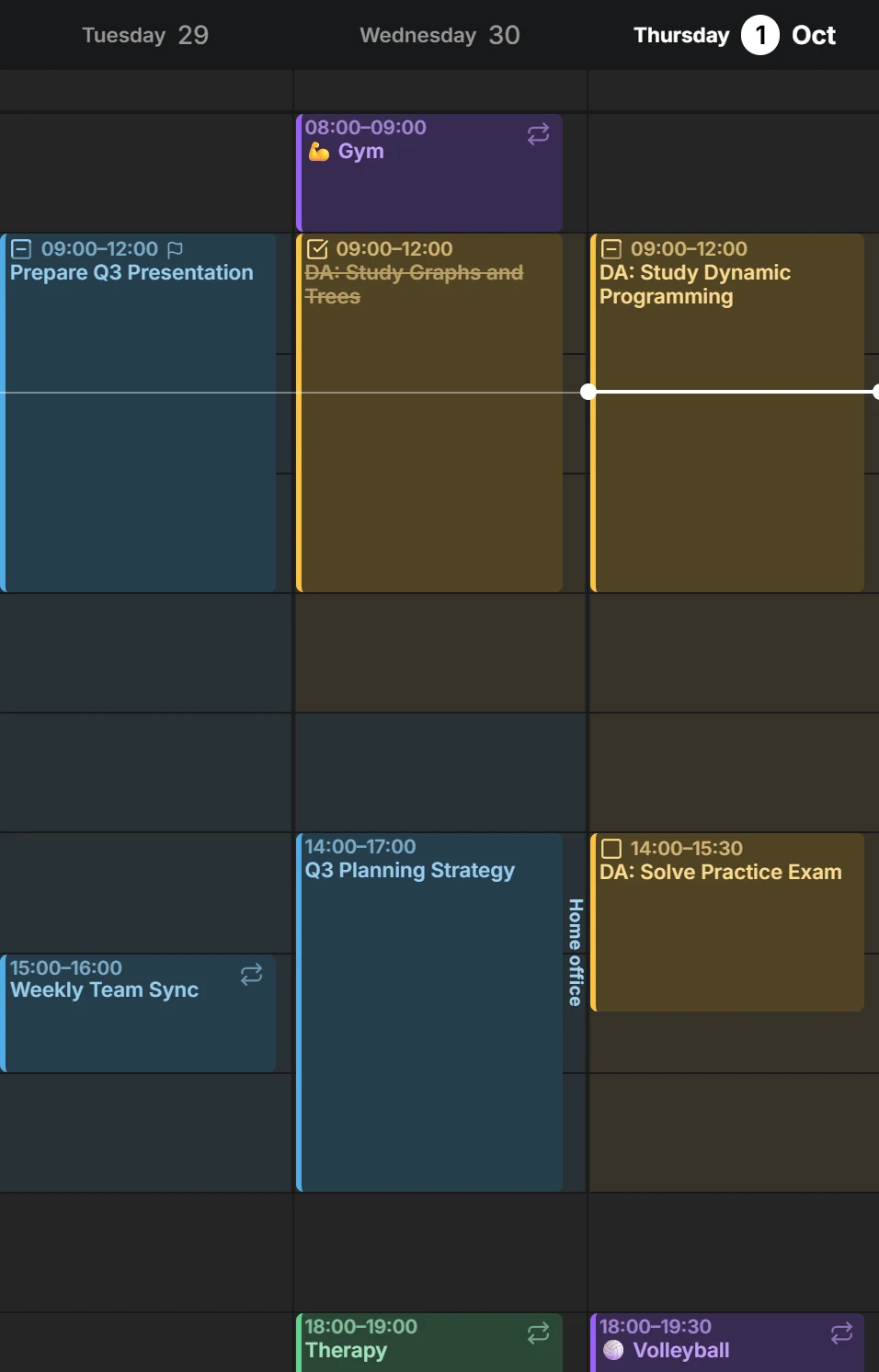
Section titled “Named or not”Without a name, a window is only its shade. That suits most availability, since the calendar’s color already says what the time is for. Give it a name or a place, and that text runs along the day’s edge, like Focus time within your working hours, or Office and Home office on different days.
Where windows overlap, their shades mix darker, and their labels move apart: the first to its start, the last to its end.
Add availability
Section titled “Add availability”Open the command palette with / or Ctrl + K and run Add Availability. It goes into your default calendar:
- If that calendar has no availability yet, you get working hours from Monday to Friday, 9:00 to 17:00.
- Otherwise you get a window on today’s weekday.
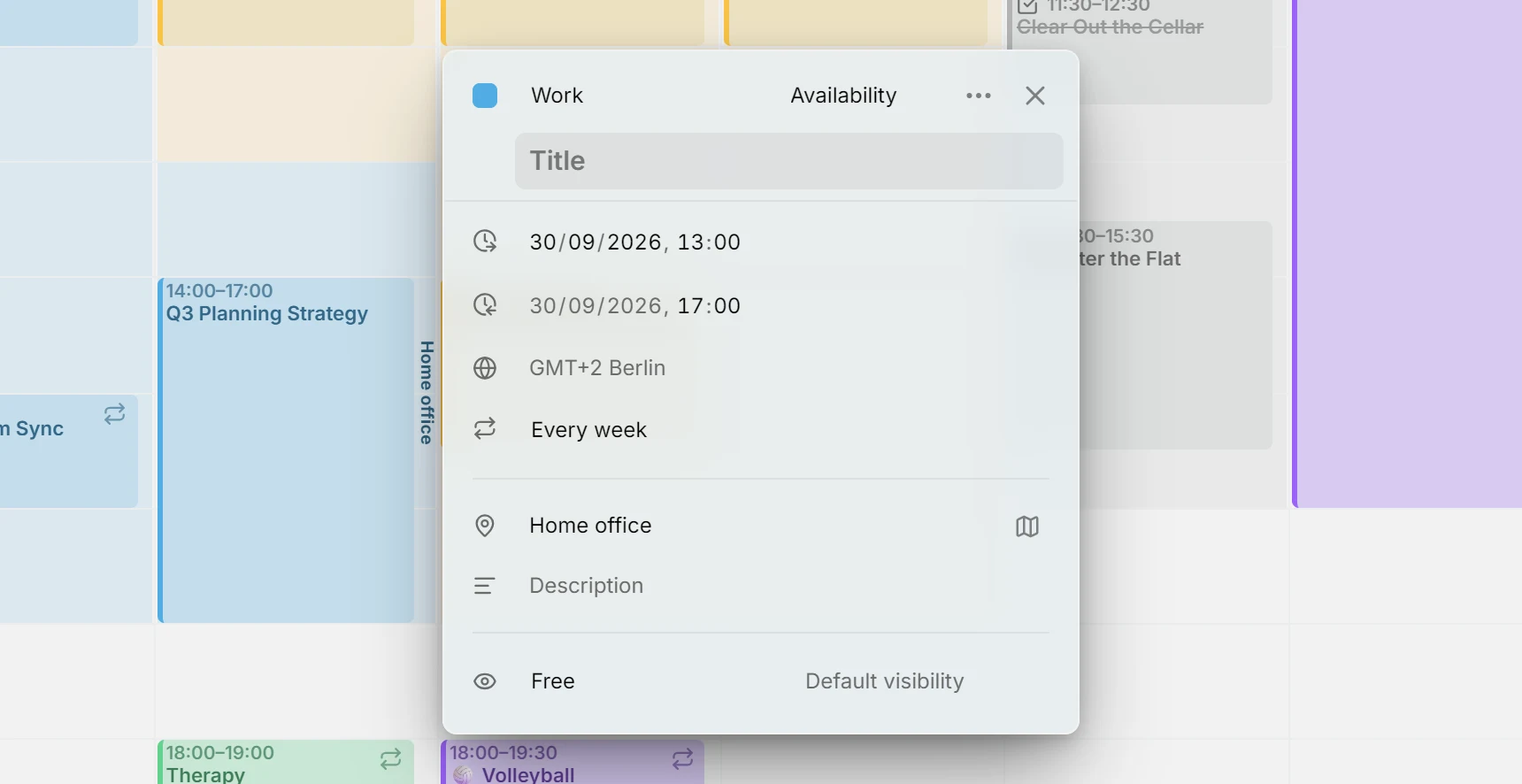
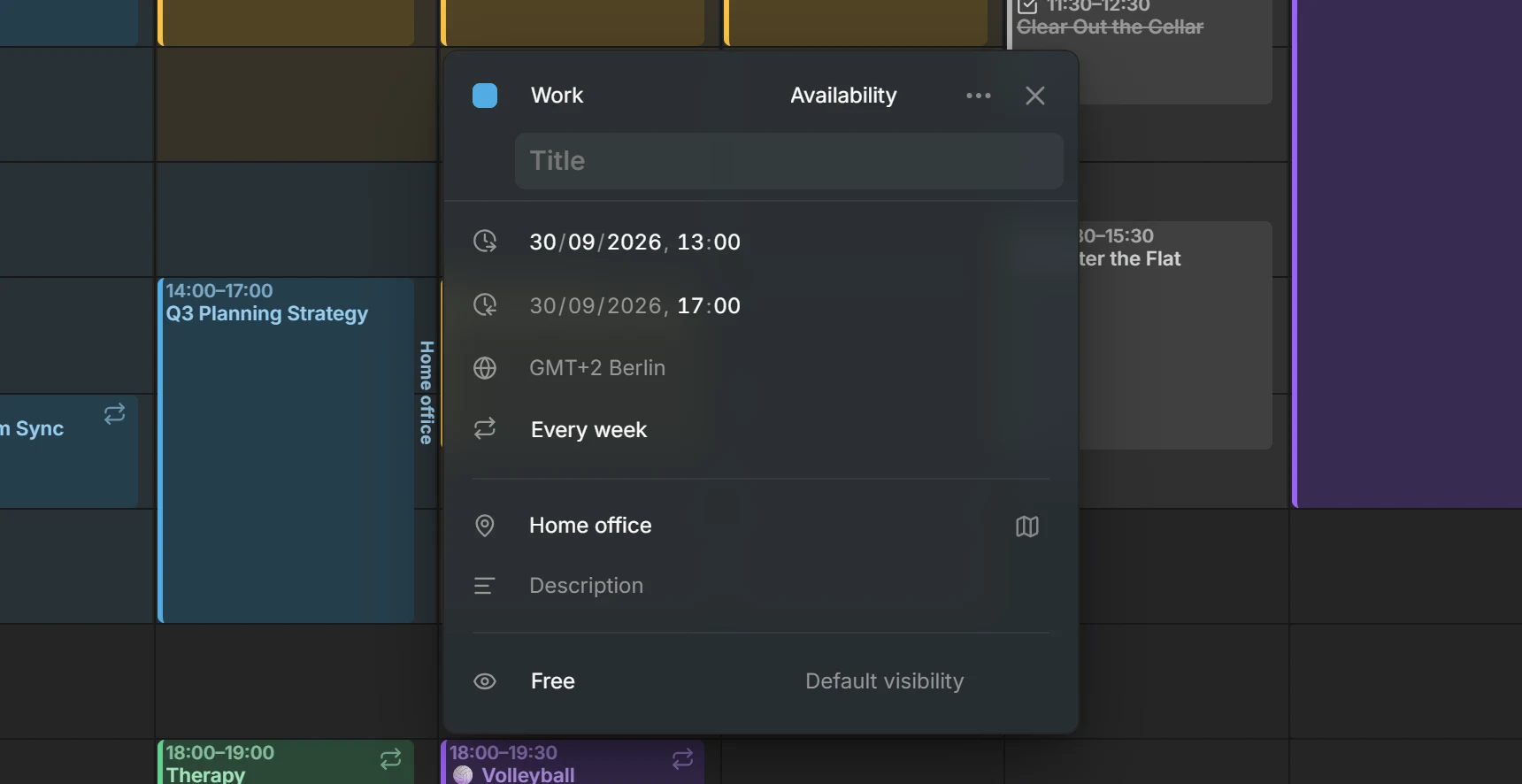
The editor opens, so you can change the times, the days, the name, the place or the calendar. An entry that doesn’t repeat can also become availability through its Type.
Edit and move
Section titled “Edit and move”- Click inside a window to open it. Dragging across it still creates a normal entry, the same as on an empty part of the grid.
- Availability repeats like any other entry. It has a time zone and a repeat rule, and when you change or delete one day of it, Mitra asks whether you mean that day or all of them.
- The editor’s Calendar field moves it to another calendar. Moving a calendar’s entries with Move entries to… takes its availability along.
- Availability only shows in the Week view. It doesn’t appear in Month, Year, Timeline or Table, in search results, or in relationships.
Show and hide
Section titled “Show and hide”A calendar’s eye in the sidebar hides its availability along with its events and tasks. To hide all availability and nothing else, turn on Hide availability under Settings → Calendar, or find it in the command palette.
Where availability can live
Section titled “Where availability can live”Any calendar you can add entries to can hold availability, including Mitra calendars. These can’t:
- Notion and Tempo calendars, since their entries can’t repeat.
- Read-only calendars, such as calendar subscriptions.
Availability stays with its calendar. Deleting the calendar, or disconnecting the account it belongs to, deletes its availability too.
Busy or free
Section titled “Busy or free”Availability has the same Show as busy or free choice as an event. It starts as Free, which suits working hours: you’re happy to be booked then. Choose Busy for time others shouldn’t take, like focus time.
Inside Mitra, both look the same. The difference is what other people see. Free availability is never written to any of your accounts. Busy availability in a CalDAV, Google or Apple calendar is added to that calendar as busy events, with its name and place, so it shows on your phone and people who invite you see the time as taken.