Keyboard shortcuts
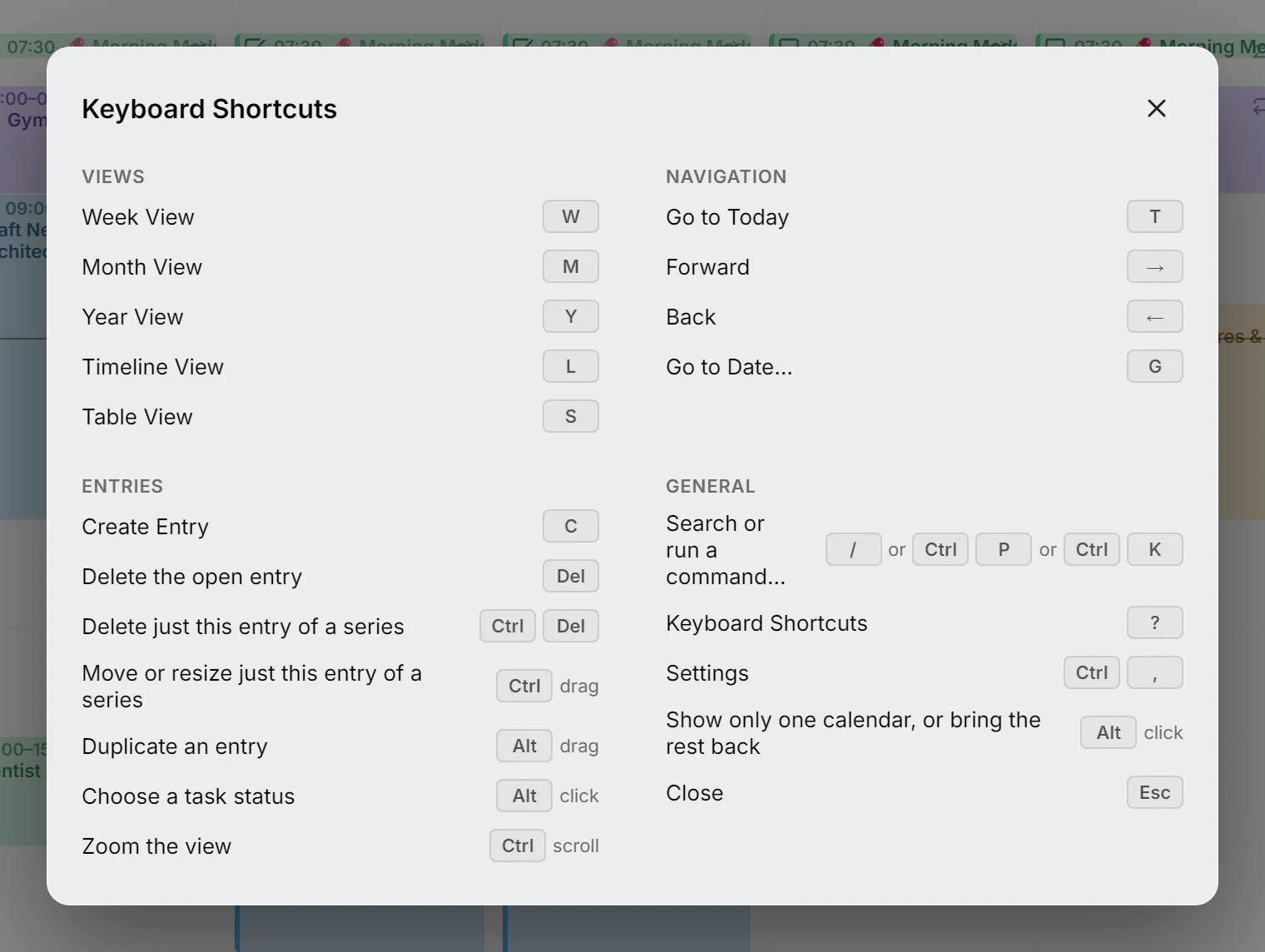
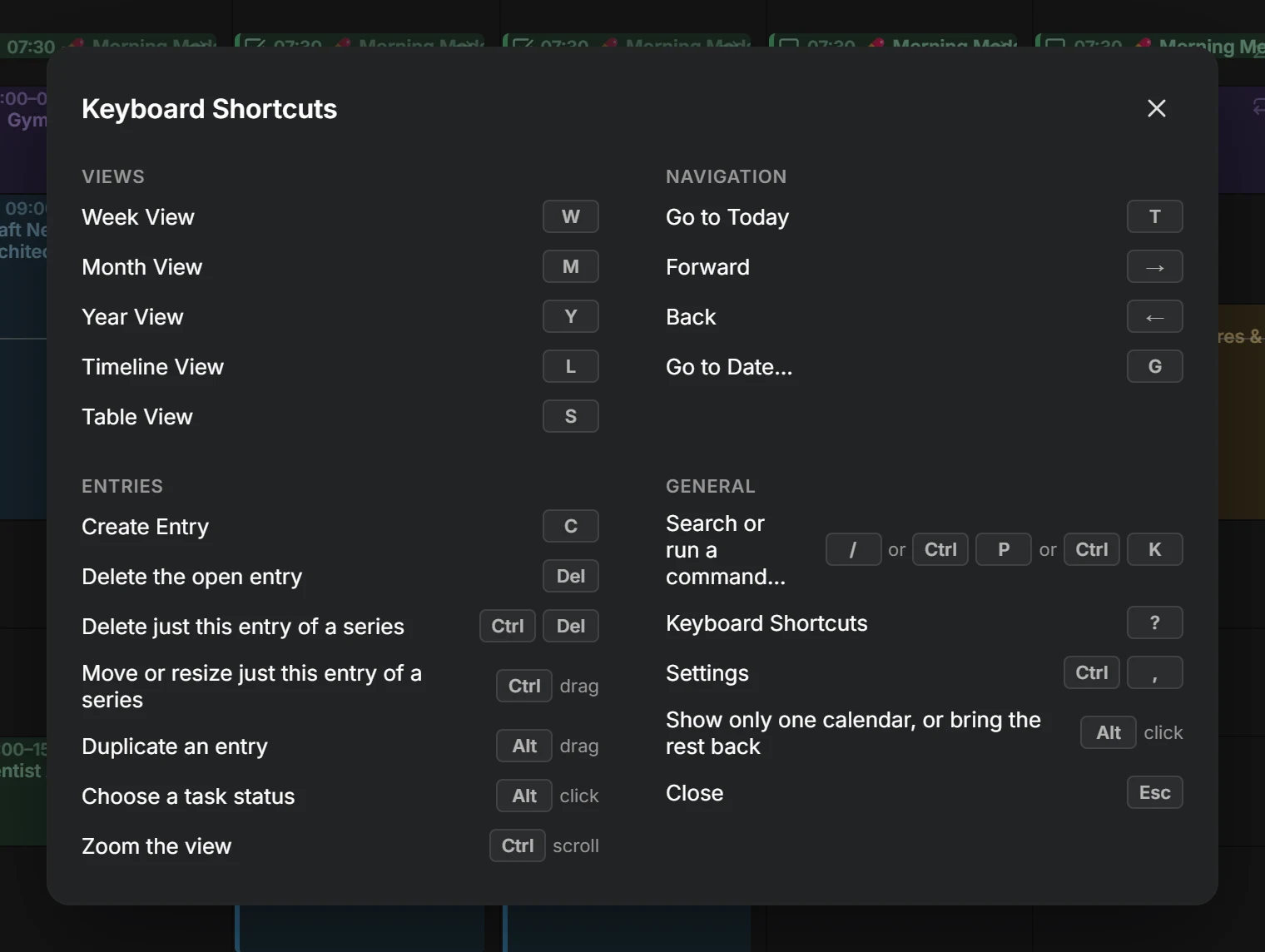
Press ? anywhere in the calendar to open the list of shortcuts. It always matches the version you’re running. The keys follow the conventions of web calendars like Google Calendar, Notion Calendar and Proton Calendar, so what you already know carries over.
| Action | Keys |
|---|---|
| Week view | W |
| Month view | M |
| Year view | Y |
| Timeline view | L |
| Table view | S |
Navigation
Section titled “Navigation”| Action | Keys |
|---|---|
| Go to today | T |
| Forward one week / month / year | → |
| Back one week / month / year | ← |
| Go to a specific date | G |
Entries
Section titled “Entries”| Action | Keys |
|---|---|
| Create an entry | C |
| Delete the open entry | Delete or Backspace |
| Delete just this entry of a series | Ctrl Delete |
| Move or resize just this entry of a series | hold Ctrl while dropping |
| Duplicate an entry | hold Alt while dropping |
| Choose a task status | Alt + click the checkbox, or right-click it |
| Zoom the view | Ctrl + scroll |
General
Section titled “General”| Action | Keys |
|---|---|
| Search entries or run a command | / or Ctrl P or Ctrl K |
| Keyboard shortcuts | ? |
| Settings | Ctrl , |
| Show only one calendar, or bring the rest back | Alt + click its eye in the sidebar |
| Close or go back | Esc |
NOTE
On a Mac, Ctrl reads as ⌘ and Alt as ⌥ throughout, and ⌫ stands in for Delete (Backspace deletes as well everywhere).
Single-letter shortcuts never fire while you type in a text field.
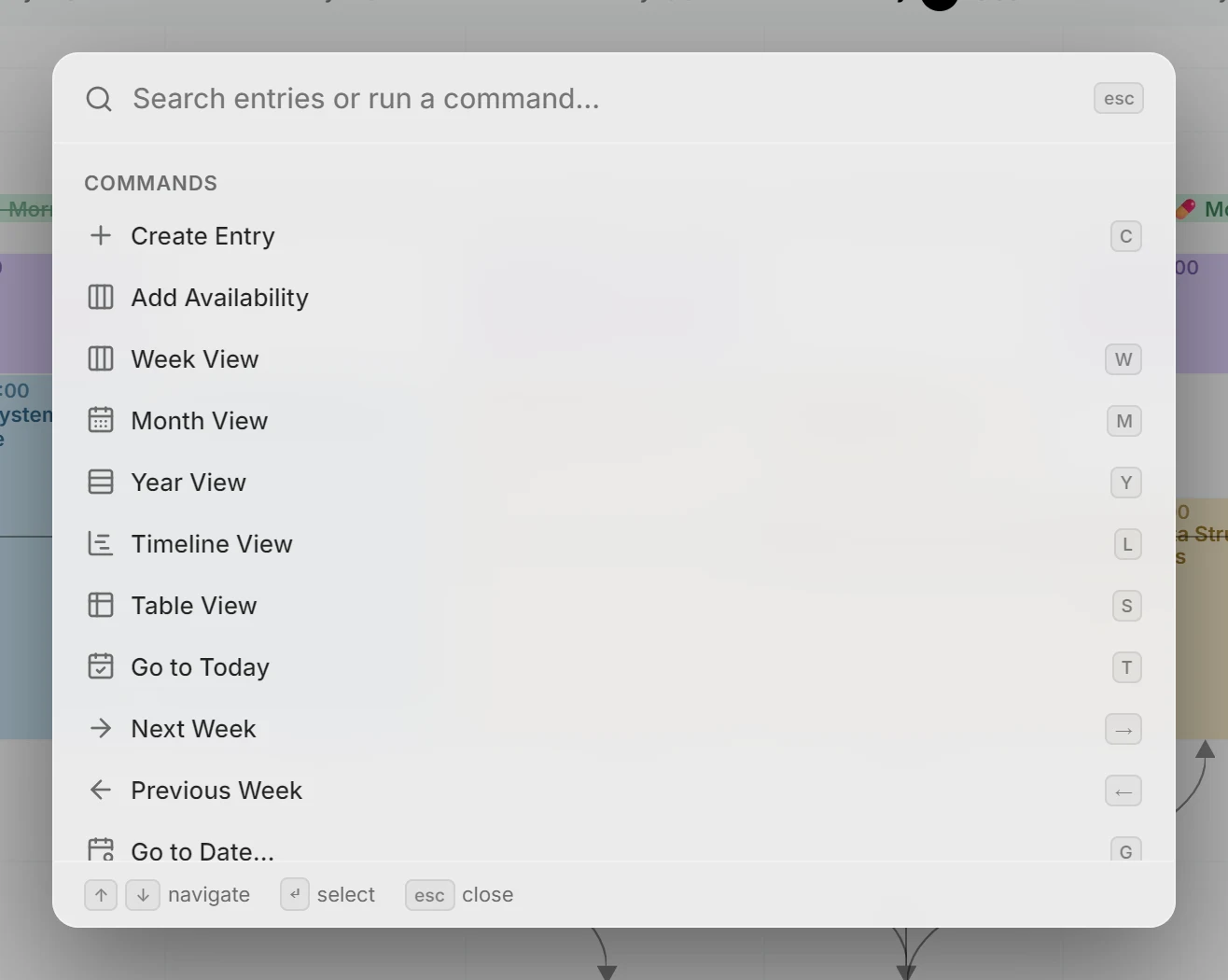
Command palette
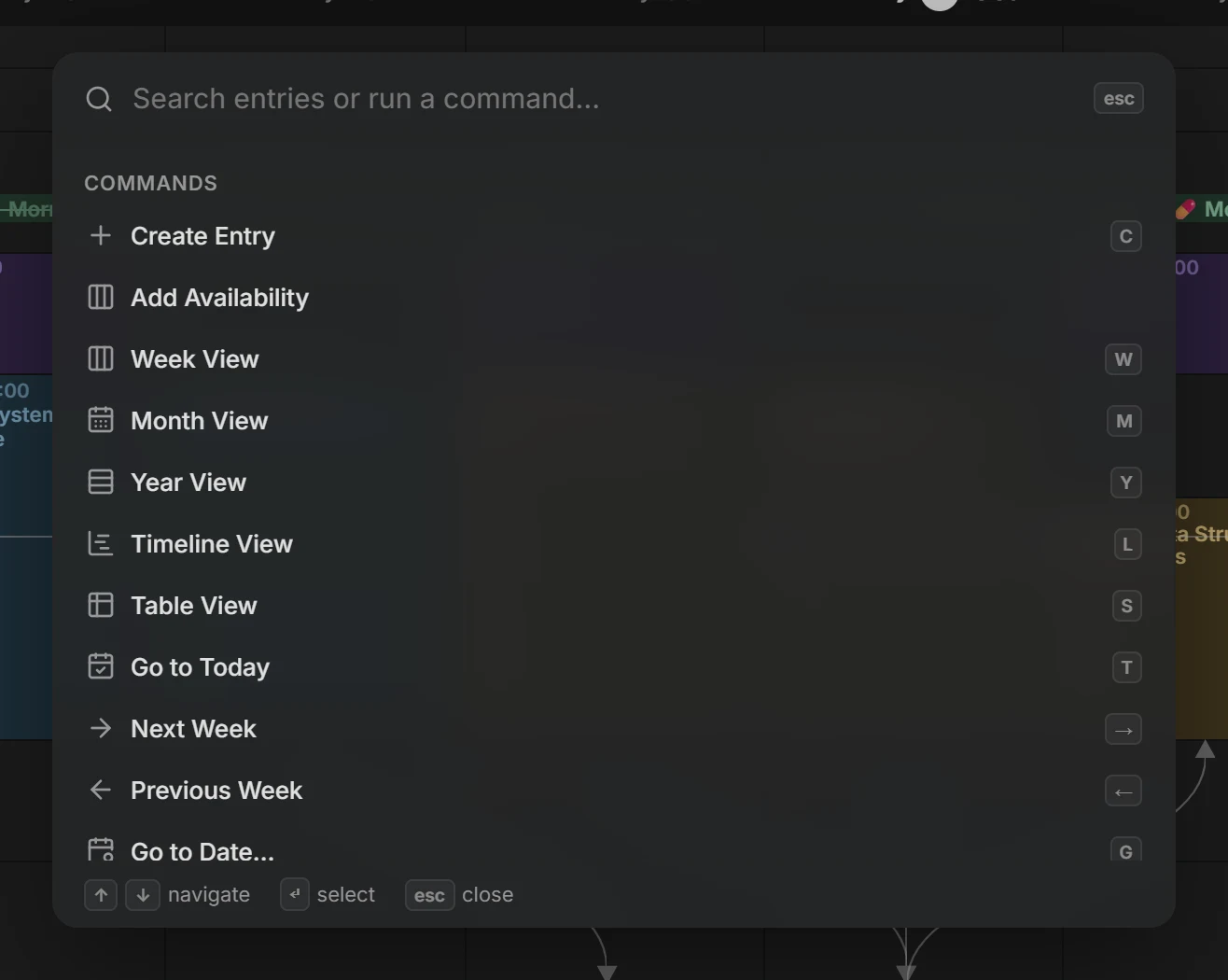
Section titled “Command palette”Press /, Ctrl + K or Ctrl + P to search your entries or run a command; all three do the same thing. The search looks through the titles, descriptions and locations in all your calendars, not just the days on screen, and lists a repeating entry once. Choosing an entry goes to its date and opens it. The commands cover the views, navigation, new entries, your calendars and your settings, and each shows its keys beside it, so you can learn them as you go.