
Attachments
此内容尚不支持你的语言。
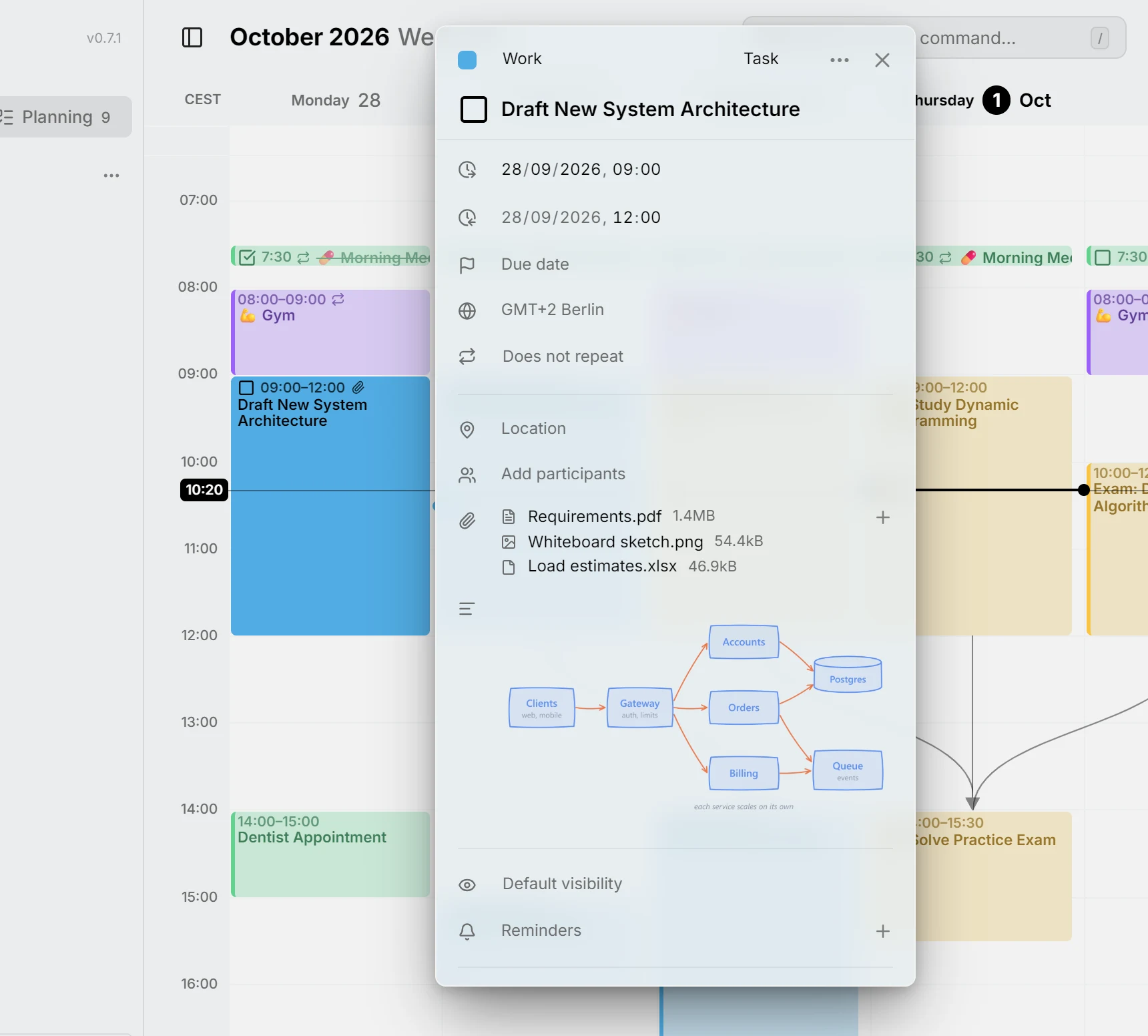
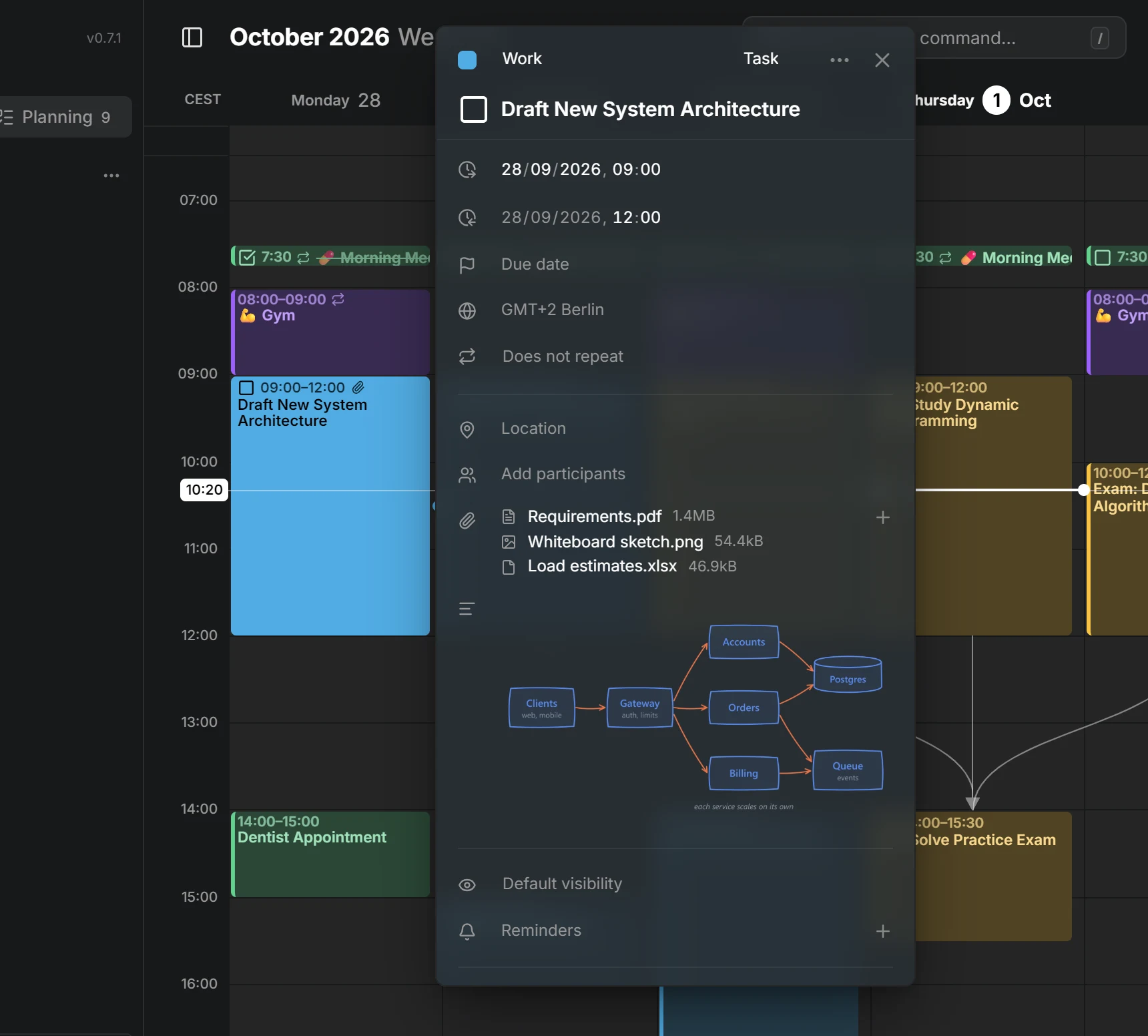
An entry can carry attachments: files such as a ticket, a photo of a whiteboard or a recipe. Mitra keeps the file on your server and saves it with the entry in the standard calendar format, so other apps using the same calendar, such as Nextcloud or Apple Calendar, show the same file on the same event.
Add a file
Section titled “Add a file”Open the entry and press + in the row with the paperclip, or the word Attachments while the row is still empty, and choose one or more files. Each attachment shows an icon for its kind, its name and its size. Click one to open it in a new tab, and press its ✕ to remove it from the entry.
A paperclip on the entry in the calendar shows which entries carry files.
Links are not attachments. To add a link to an entry, write it in the description, and the Links row shows it.
Where the files are kept
Section titled “Where the files are kept”Files you add are kept in the files folder of Mitra’s data folder, next to its database, so a backup of that folder includes them. Each file is saved under a random name rather than its own, and the same file added twice is kept once.
IMPORTANT
Anyone who has a file’s address can open it without signing in to Mitra. That is what lets other calendar apps open the file: Mitra writes the address into your calendar, and those apps can’t sign in to Mitra. The address contains a random part that can’t be guessed, but treat it like any share link. To get a new address, remove the attachment and add the file again.
Images, videos, audio, PDFs and plain text open in the browser. Every other kind of file downloads, so a file can never run code inside Mitra.
Limits
Section titled “Limits”A single file can be up to 25 MB, and there’s no limit on how much a person can store. Whoever runs the server can change both, or turn adding files off; see Configuration. Adding files is always off in the demo.
A file that no entry uses any more is deleted about a day after it was added. Until then, you can still add it to an entry you haven’t saved yet, or add it back after removing it by mistake.
Which calendars support this
Section titled “Which calendars support this”Calendars from a CalDAV server and Apple Calendar hold attachments, and so do Mitra calendars. In a calendar subscription, you see the attachments the feed carries but can’t change them.
A file can also appear in the description: the picture or link button on its row adds it at the end of the text, as a picture for images and a link for the rest. Removing the attachment removes that too.
In a Google calendar, the attachments are the Google Drive files attached in Google Calendar: Mitra shows them but can’t add or remove any. Notion and Tempo calendars have no attachments row. Moving an entry with attachments into any of these drops its files, and Mitra tells you before anything moves.
NOTE
Attachments that other apps added show up in Mitra too, including files your calendar server stores itself, which open with that server’s own address. Mitra leaves the attachments it doesn’t recognize exactly as they are, so editing an entry in Mitra never changes another app’s attachments.