
AI connectors
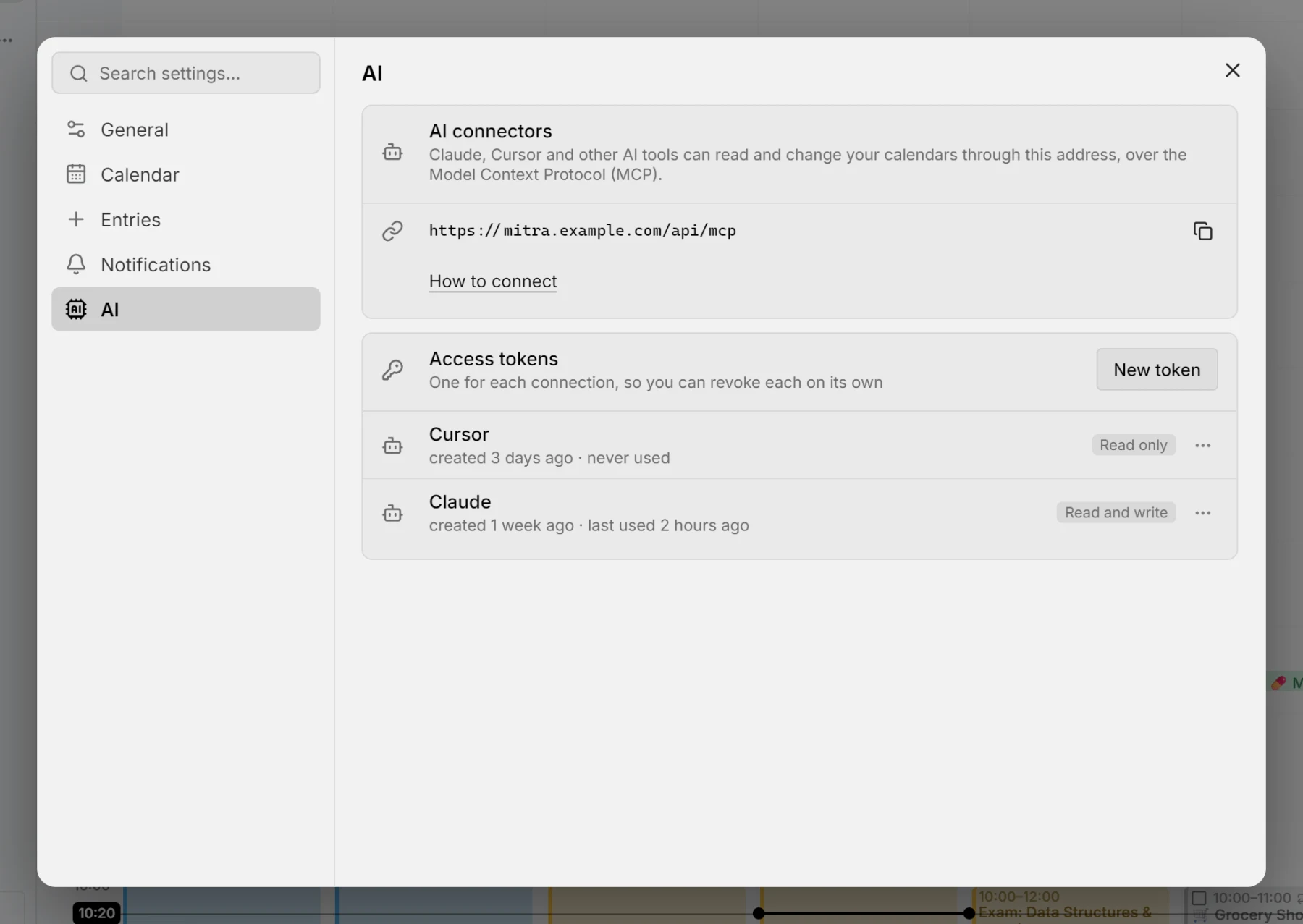
Mitra speaks the Model Context Protocol (MCP), so AI tools can work with your calendars: look at your week, find an entry, plan a task, move a meeting. Each tool connects to the same address, https://<your Mitra>/api/mcp, which Settings → AI shows under AI connectors. Claude calls such a connection a connector, Cursor and others an MCP server.
A connected tool sees and changes exactly what you do in Mitra, across all your connected calendars, and a change it makes reaches the provider as yours would.
Connect a tool
Section titled “Connect a tool”Where people sign in, a tool needs an access token:
- Open Settings → AI and choose New token under Access tokens.
- Name it after what it is for, such as the laptop or Claude, and choose Read only or Read and write.
- Copy the token. Mitra keeps only a fingerprint of it, so it is shown this once.
A token stands for you until you revoke it in the same list, which also shows when each was last used. A read-only token offers the tool only what reads.
Without sign-in, Mitra is for one person and asks for no token: the address is enough. Anyone who can reach that address can then use it, so keep such a server private.
Many tools can also set themselves up: tell Claude Code or Cursor to connect to the address with the token, and it writes its own configuration. The examples below do the same by hand, and leave out the Authorization header where no token is needed.
Claude Code
Section titled “Claude Code”claude mcp add --transport http mitra https://mitra.example.com/api/mcp --header "Authorization: Bearer mitra_…"Cursor
Section titled “Cursor”Add Mitra to .cursor/mcp.json in a project, or ~/.cursor/mcp.json for all of them:
{ "mcpServers": { "mitra": { "url": "https://mitra.example.com/api/mcp", "headers": { "Authorization": "Bearer mitra_…" } } }}Claude Desktop
Section titled “Claude Desktop”Claude Desktop reaches an address with a token through mcp-remote, which needs Node.js. Add it to claude_desktop_config.json:
{ "mcpServers": { "mitra": { "command": "npx", "args": ["mcp-remote", "https://mitra.example.com/api/mcp", "--header", "Authorization:${MITRA_TOKEN}"], "env": { "MITRA_TOKEN": "Bearer mitra_…" } } }}What a connected tool can do
Section titled “What a connected tool can do”A connected tool works with your calendars as you would in Mitra. It can:
- look at a day or a week, with what’s overdue and what’s still unscheduled
- find entries and read them in full
- create, change, complete and delete entries, one occurrence of a repeating entry or all of them
- invite people where the calendar holds participants; whether they’re told depends on the provider
- relate entries as dependencies and subtasks
- create and delete calendars where the provider allows it
It reads all your calendars, including the ones you’ve hidden in the sidebar, and knows your time zone and the language and region you chose in Settings → General, so it can speak your dates the way you write them.
CAUTION
Entries come from calendars other people can write to, such as a shared calendar or an invitation. Their text reaches the tool like anything else it reads, so give a token that writes only to a tool you’d trust with a stranger’s note in front of it.
In the browser
Section titled “In the browser”Where the browser’s own assistant can use what a page offers (WebMCP, an early Chrome feature), an open Mitra offers the same, with nothing to set up.
Turn it off
Section titled “Turn it off”Set MITRA_MCP to off and no tool can connect. The demo never takes connections.