
Custom CSS
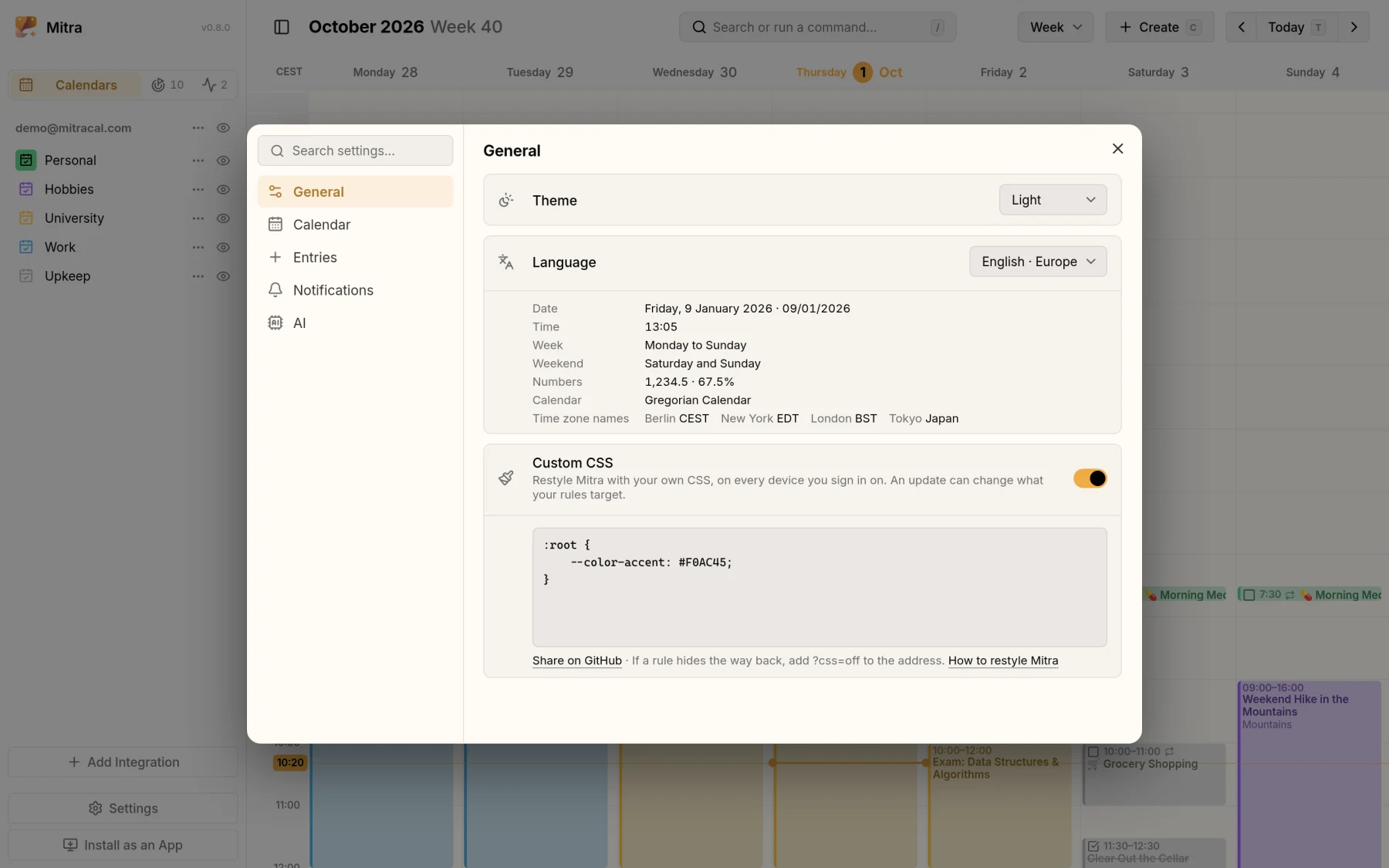
Mitra’s look is plain CSS, and you can add your own on top of it. Hide what you never use, put a border around today, or give the whole server your colours. There are two places for it: Settings → General → Custom CSS for yourself, and, where people sign in, Settings → Administration → Custom CSS for everyone for everyone on the server.
WARNING
Until Mitra 1.0, any update can change the elements, attributes and variables your rules target. A rule that works today can stop working after an update, or start hiding something. Keep your stylesheet short, and look at Mitra after you update it.
Your own stylesheet
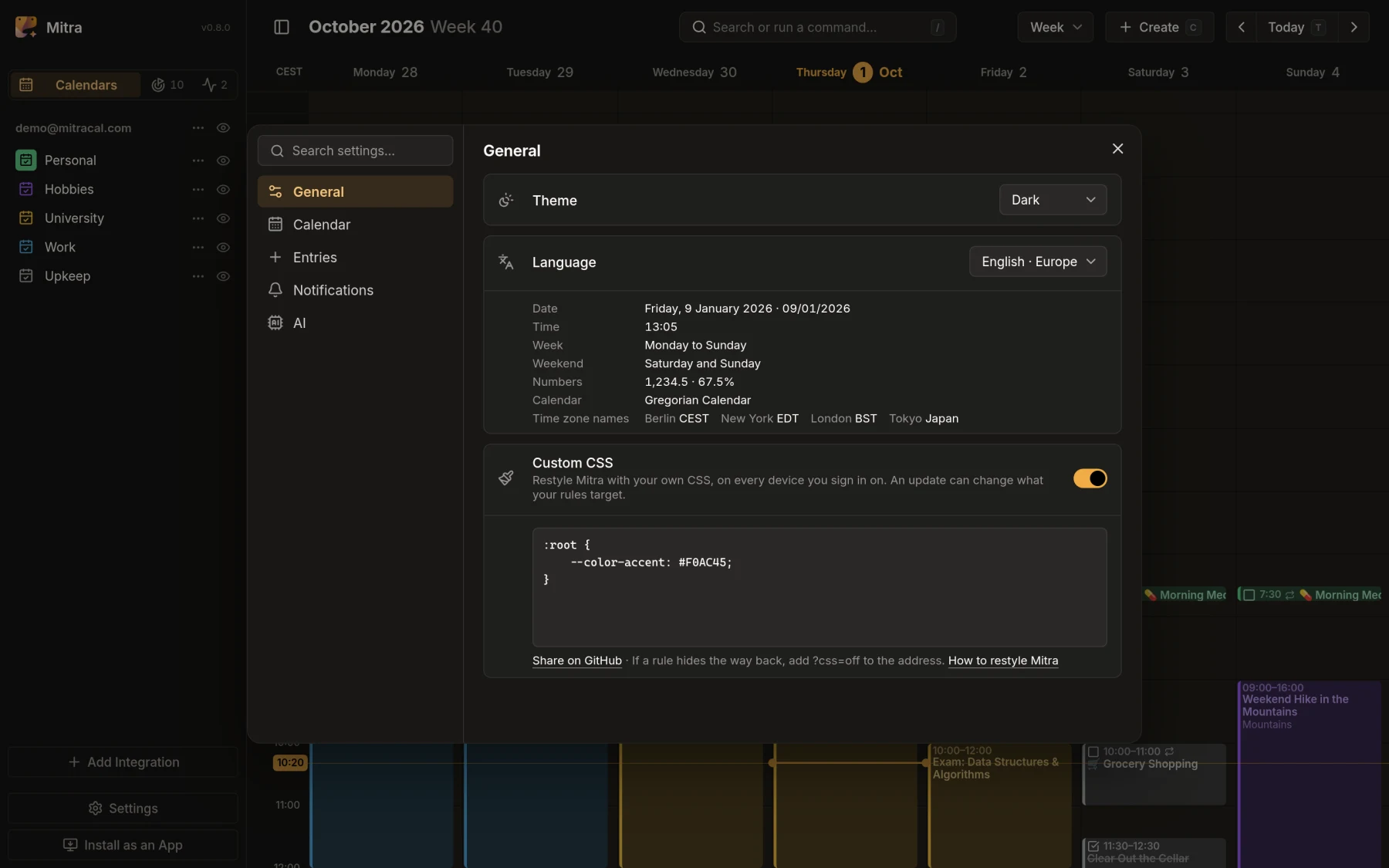
Section titled “Your own stylesheet”Open Settings → General and type CSS into the box under Custom CSS. Mitra wears it as you type, saves it a moment after you stop, and it follows your account to every device and browser you sign in from.
The switch beside Custom CSS turns your stylesheet off without losing it, and the command palette offers Custom CSS: Off and Custom CSS: On.
@import is removed when your stylesheet is saved: paste a whole stylesheet rather than linking one.
The server’s stylesheet
Section titled “The server’s stylesheet”Where people sign in, an administrator can restyle Mitra for everyone on the server: open Settings → Administration and type CSS into the box under Custom CSS for everyone. You see it as you type, and everyone else from the next time they load Mitra. Its switch turns it off for everyone without losing it. The first person to sign in to a server is its administrator. Without sign-in, your own stylesheet already reaches everyone who uses Mitra, so it’s the only one.
It suits what makes a server yours, such as its colours, its font or the name it already carries. Each person’s own stylesheet comes after it, so theirs wins where both set the same thing.
Your rule wins
Section titled “Your rule wins”Mitra’s own rules sit in a cascade layer named mitra, and yours don’t, so a rule of yours beats Mitra’s whatever its selector. You don’t need !important. The few !important declarations of Mitra’s own stay on top, since layers rank them the other way round: they hold the layout together.
To take away something Mitra sets, rather than paint over it, set the property to revert. This removes the surface of the days in the month view:
mitra-weeks mitra-day { background: revert;}Examples
Section titled “Examples”Hide the days outside the month
Section titled “Hide the days outside the month”mitra-weeks [data-outside] { visibility: hidden;}In the month view, this hides the days before and after the month it shows, their dates and their background. The entries on them stay. visibility keeps the grid in place, where display: none would pull it apart. Zoom in to give the month’s own days more room.
A border around today
Section titled “A border around today”mitra-weeks mitra-day[today] { outline: 2px solid var(--color-accent); outline-offset: -2px;}outline rather than border: a border would make the day bigger and move the grid.
Your own colours
Section titled “Your own colours”:root { --color-accent: light-dark(#2e7d32, #81c784); --border-radius: 8px;}light-dark() takes the colour for the light theme, then the one for the dark theme. Everything Mitra colours from these variables follows, the title bar of the installed app included:
| Variable | What it colours |
|---|---|
--color-accent | Today, what’s selected, focus rings and the main buttons |
--color-background-seed | The ground behind everything; dialogs take theirs from it |
--color-surface | The days in the views, and what sits on the ground, such as the command palette |
--color-text | Text |
--color-text-muted | Secondary text, such as hints and times |
--color-error | Errors and warnings |
--border-radius | The corners of buttons, entries and most controls |
--font-family | The text’s typeface |
Find what to target
Section titled “Find what to target”Your browser’s developer tools show what’s on the page: right-click something and choose Inspect. Mitra’s own elements are named mitra-…, such as the views mitra-days (week), mitra-weeks (month), mitra-months (year), mitra-timeline and mitra-table, a day mitra-day, an entry mitra-entry-segment and the sidebar mitra-sidebar. Attributes state facts, such as today, data-outside and data-date.
Buttons, fields, switches, menus and the other controls keep their insides to themselves. Reach them through their parts, such as mitra-switch::part(switch), and through the --mitra-… variables they read. If you need to reach further, ask for a part in an issue.
What to leave alone
Section titled “What to leave alone”A few things hold Mitra together, and changing them breaks it:
displayorpositiononmitra-day, or on the.entriesinside a view: they sit on a grid the whole view shares, and the week view becomes very slow without it.- Variables that start with
--_: they change on every frame of a zoom, and setting them fights it. - The size of an entry: its heading picks a layout by its width, so sizing entries from outside can switch it.
all: unsetalso unsets hiding, so restate[hidden] { display: none }beside it.
When a rule hides the way back
Section titled “When a rule hides the way back”Add ?css=off to the address, such as https://mitra.example.com/?css=off. Mitra then loads once without either stylesheet, so you can open Settings and fix yours. An administrator fixes the one for everyone the same way.
Before you paste
Section titled “Before you paste”A stylesheet runs no code, but it can load addresses, and one written for it can send what’s on your screen to them. Paste only CSS you understand. Your own stylesheet reaches only you; the server’s reaches everyone on it.
Share yours
Section titled “Share yours”Under the box, Share on GitHub opens a new discussion in the Custom CSS category with your stylesheet already in it. Say what it does, add a screenshot if it shows something, and post it. A stylesheet too long for the link is copied to your clipboard instead, for you to paste into the discussion. The category is also where to find stylesheets others have shared: read them before you paste them.